
runekaagaard/mcp-redmine
Developer toolsこのページは AI により自動翻訳されています。技術的な詳細は原文をご確認ください。 原文を見る
Runekaagaard/MCP-Redmineは、[[T0]からインポートされたMCPサーバー候補です。
概要
Runekaagaard/MCP-Redmineは、[[T0]からインポートされたMCPサーバー候補です。
概要(AI 翻訳)
ステータス:維持中、日常使用中。
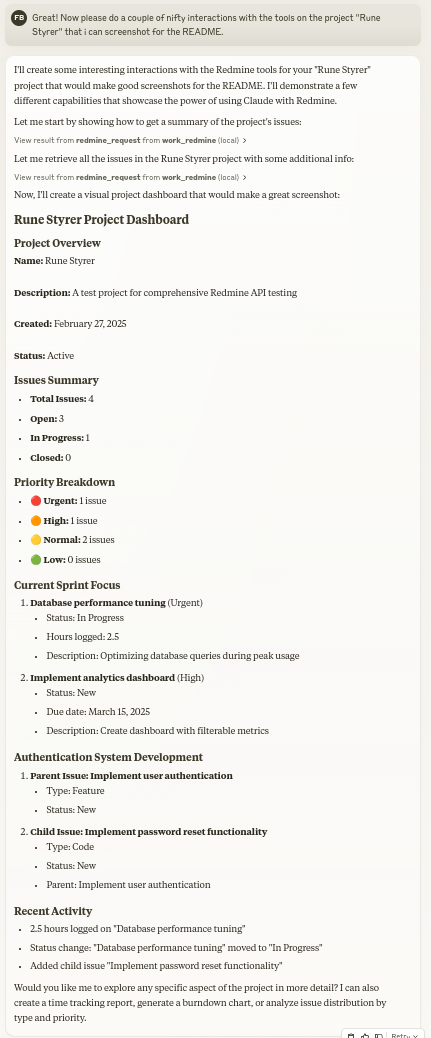
ClaudeをあなたのRedmineアシスタントにしましょう!MCP RedmineはClaude DesktopをRedmineインスタンスに接続し、以下を可能にします:
- プロジェクトや課題の検索・閲覧
- フルマークダウン対応の課題を作成・更新
- ファイル添付ファイルのアップロードおよびダウンロード
- 時間入力の管理と追跡
- 発行状況やフィールドの更新
- Redmineの包括的なAPI機能へのアクセス
APIリクエストにはhttpxを使用し、RedmineのOpenAPI仕様と統合して包括的なAPIカバレッジを実現しています。
Claude Desktopでの使用
1.uvを用いた設置
UVを設置していることを確認してください。
まだインストールしていなければUVをインストールしてください。
-
Linux
-
macOS
-
窓
あなたのclaude_desktop_config.jsonに追加:
2.dockerを用いた設置
必ずDockerをインストールしてください。
GitHubコンテナレジストリから公開画像を取得してください:
あるいは自分でイメージを作ることもできます:
あなたのclaude_desktop_config.jsonに追加:
3.その他のMCPクライアントおよびトランスポート
MCP Redmineは、Claude Code、Cursor、IntelliJベースのIDE、n8nなど、あらゆるMCPクライアントで動作します。あなたの方を指してください クライアントに対して、上記のコマンドと環境変数を適用し、クライアントのドキュメントに従っています。
このページは AI により自動翻訳されています。技術的な詳細は原文をご確認ください。
README
以下は原文 README の抜粋です。原文を見る。
MCP Redmine
Status: Maintained, in daily use.
Let Claude be your Redmine assistant! MCP Redmine connects Claude Desktop to your Redmine instance, allowing it to:
- Search and browse projects and issues
- Create and update issues with full markdown support
- Upload and download file attachments
- Manage and track time entries
- Update issue statuses and fields
- Access comprehensive Redmine API functionality
Uses httpx for API requests and integrates with the Redmine OpenAPI specification for comprehensive API coverage.
Usage with Claude Desktop
1. Installation using uv
Ensure you have uv installed.
uv --version
Install uv if you haven’t already.
-
Linux
curl -LsSf https://astral.sh/uv/install.sh | sh -
macOS
brew install uv -
windows
powershell -ExecutionPolicy ByPass -c "irm https://astral.sh/uv/install.ps1 | iex"
Add to your claude_desktop_config.json:
  {
    "mcpServers": {
      "redmine": {
        "command": "uvx",
        "args": ["--from", "mcp-redmine==2026.10.15.204909",
                "--refresh-package", "mcp-redmine", "mcp-redmine"],
        "env": {
          "REDMINE_URL": "https://your-redmine-instance.example.com",
          "REDMINE_API_KEY": "your-api-key",
          "REDMINE_REQUEST_INSTRUCTIONS": "/path/to/instructions.md",
          "REDMINE_ALLOWED_DIRECTORIES": "/tmp,/home/user/uploads"
        }
      }
    }
  }
2. Installation using docker
Ensure you have docker installed.
docker --version
Pull the published image from GitHub Container Registry:
docker pull ghcr.io/runekaagaard/mcp-redmine:latest
Or build the image yourself:
git clone [email protected]:runekaagaard/mcp-redmine.git
cd mcp-redmine
docker build -t ghcr.io/runekaagaard/mcp-redmine .
Add to your claude_desktop_config.json:
{
  "mcpServers": {
    "redmine": {
      "command": "docker",
      "args":  [
          "run",
          "-i",
          "--rm",
          "-e", "REDMINE_URL",
          "-e", "REDMINE_API_KEY",
          "-e", "REDMINE_REQUEST_INSTRUCTIONS",
          "-e", "REDMINE_ALLOWED_DIRECTORIES",
          "-v", "/path/to/instructions.md:/app/INSTRUCTIONS.md",
          "-v", "/path/to/uploads:/app/uploads",
          "ghcr.io/runekaagaard/mcp-redmine:latest"
      ],
      "env": {
        "REDMINE_URL": "https://your-redmine-instance.example.com",
        "REDMINE_API_KEY": "your-api-key",
        "REDMINE_REQUEST_INSTRUCTIONS": "/app/INSTRUCTIONS.md",
        "REDMINE_ALLOWED_DIRECTORIES": "/app/uploads"
      }
    }
  }
}
3. Other MCP clients and transports
MCP Redmine works with any MCP client (Claude Code, Cursor, IntelliJ-based IDEs, n8n, etc.) - point your
インストール
uvx --from mcp-redmine==2026.10.15.204909 --refresh-package mcp-redmine mcp-redmine設定
{
    "mcpServers": {
      "redmine": {
        "command": "uvx",
        "args": ["--from", "mcp-redmine==2026.10.15.204909",
                "--refresh-package", "mcp-redmine", "mcp-redmine"],
        "env": {
          "REDMINE_URL": "https://your-redmine-instance.example.com",
          "REDMINE_API_KEY": "your-api-key",
          "REDMINE_REQUEST_INSTRUCTIONS": "/path/to/instructions.md",
          "REDMINE_ALLOWED_DIRECTORIES": "/tmp,/home/user/uploads"
        }
      }
    }
  }