
通过提示进入LibreSprite。
概览
模型上下文协议(MCP)服务器,用于在 LibreSprite 内进行提示辅助编辑、设计和脚本编写。 https://github.com/user-attachments/assets/71440bba-16a5-4ee2-af10-2c346978a290 UV是安装和使用这台服务器的推荐方式。如果你还没安装过,这里有几句简短的简要提示: 该软件包发布在PyPI上,所以你可以用其他方式使用(比如pipx等)。 用以下入口命令(或者如果你不使用UV的话,用其他命令)将MCP服务器添加到你的MCP客户端: 编辑_Claude >设置>开发者>编辑配置> claude_desktop_config.json_或.cursor > mcp.json以包含服务器: 你也可以用这个高级徽章让它更快: 你需要重启Claude Desktop才能加载MCP服务器。
概述(AI 翻译)
提示进入LibreSprite的途径
模型上下文协议(MCP)服务器,用于在 LibreSprite 内进行提示辅助编辑、设计和脚本编写。
https://github.com/user-attachments/assets/71440bba-16a5-4ee2-af10-2c346978a290
先修条件
uv 是安装和使用该服务器的推荐方式。如果你还没安装过,以下是一些简短的简要提示:
-
Windows:(以管理员身份运行)
-
*Unix:
关于安装uv的更多信息。
该软件包发布在PyPI上,所以你可以随意用其他方式([pipx等)
用途
第一步:设置客户端
用以下入口命令(或者如果你不使用 uv,则用其他方法)将 MCP 服务器添加到你的 MCP 客户端:
示例:
- Claude桌面与光标
编辑_Claude >设置>开发者>编辑配置 > claude_desktop_config.json_ 或 .cursor > mcp.json 以包含服务器:
你也可以用这个高级徽章让它更快:
[!注] 你需要重启 Claude Desktop 才能加载 MCP 服务器。
步骤2:设置LibreSprite。
从各版本下载最新的稳定远程脚本mcp.js,并将其添加到LibreSprite的脚本文件夹中:
本页由 AI 翻译,技术细节请以原文为准。
README
以下为原文 README 节选,完整内容请查看原文。
LibreSprite-MCP


Prompt your way into LibreSprite
Model Context Protocol (MCP) server for prompt-assisted editing, designing, and scripting inside LibreSprite.
https://github.com/user-attachments/assets/71440bba-16a5-4ee2-af10-2c346978a290
Prerequisites
uv is the recommended way to install and use this server. Here are quick one-liners to install it if you haven’t:
-
Windows: (run as administrator)
powershell -ExecutionPolicy ByPass -c "irm https://astral.sh/uv/install.ps1 | iex" -
Unix:
curl -LsSf https://astral.sh/uv/install.sh | sh
More on installing uv.
The package is published on PyPI, so feel free to consume it any other way you prefer (pipx, etc)
Usage
Step 1: Setting up the client
Add the MCP server with the following entrypoint command (or something else if you are not using uv) to your MCP client:
uvx libresprite-mcp
Examples:
-
Claude Desktop & Cursor
Edit Claude > Settings > Developer > Edit Config > claude_desktop_config.json or .cursor > mcp.json to include the server:
{
    "mcpServers": {
        // ...existing servers...
        "libresprite": {
            "type": "stdio",
            "command": "uvx",
            "args": [
                "libresprite-mcp"
            ]
        }
        // ...existing servers...
    }
}
You can also use this fancy badge to make it quick:

[!NOTE] You will have to restart Claude Desktop to load the MCP Server.
Step 2: Setting up LibreSprite
Download the latest stable remote script mcp.js from releases and add it to LibreSprite’s scripts folder:
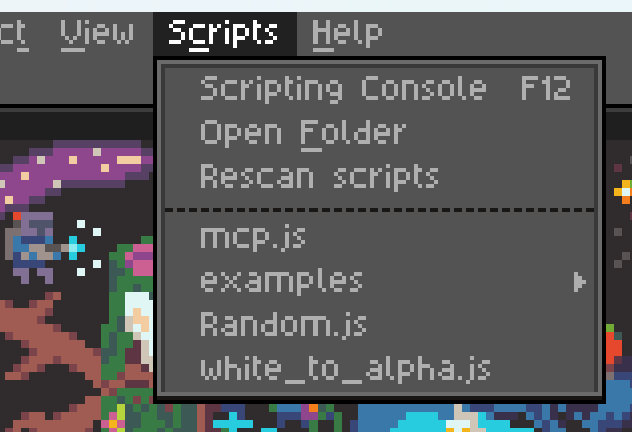
Step 3: Connect and use
Run the mcp.js script (that you see in the screenshot above), and make sure your MCP server is running (Claude Desktop/Cursor is loaded and running). If all went well, you should see the following screen:

安装
uvx libresprite-mcp配置
{
        "mcpServers": {
            // ...existing servers...
            "libresprite": {
                "type": "stdio",
                "command": "uvx",
                "args": [
                    "libresprite-mcp"
                ]
            }
            // ...existing servers...
        }
    }