
x-lab2017/open-digger-mcp-server
Developer toolsЭта страница переведена автоматически. Технические детали смотрите в оригинале. Открыть оригинал
MCP server of OpenDigger
Обзор
A Model Context Protocol (MCP) server for OpenDigger enabling advanced repository analytics and insights through tools and prompts. Don't forget to configure Cursor (update path in .cursor/mcp.json) If you are using Cursor AI IDE, you should see the MCP server () toast in the bottom-left corner. You should _**_ it, & now you can start using the tools and prompts provided by the MCP server. To verify, open Cursor Settings and check the MCP Servers section → you should see open-digger-mcp listed there. To further confirm that the server is functioning correctly, you can check the following indicators in Cursor: - ✅ next to "open-digger-mcp" title - ✅ displayed in server status - ✅ displayed in server status - ✅ or red indicators Please refer to Installation.md for detailed installation instructions and configuration options for different IDEs. 1. - Comprehensive repository health reports 2. - Competitive repository analysis 3.
README
Показан фрагмент оригинального README. Открыть оригинал.
OpenDigger MCP Server
A Model Context Protocol (MCP) server for OpenDigger enabling advanced repository analytics and insights through tools and prompts.
Quick Start
# Setup
git clone https://github.com/X-lab2017/open-digger-mcp-server.git

# (Optional) Ensure you're on the master branch
git checkout master

cd open-digger-mcp-server && cd mcp-server
npm install
npm run build

# Start server
npm start
[!IMPORTANT]
Don’t forget to configure Cursor (update path in .cursor/mcp.json)
Expected output:
OpenDigger MCP Server running (on stdio)...
[!IMPORTANT]
If you are using Cursor AI IDE, you should see the MCP server (open-digger-mcp) toast in the bottom-left corner. You should enable it, & now you can start using the tools and prompts provided by the MCP server. To verify, open Cursor Settings and check the MCP Servers section → you should seeopen-digger-mcplisted there.
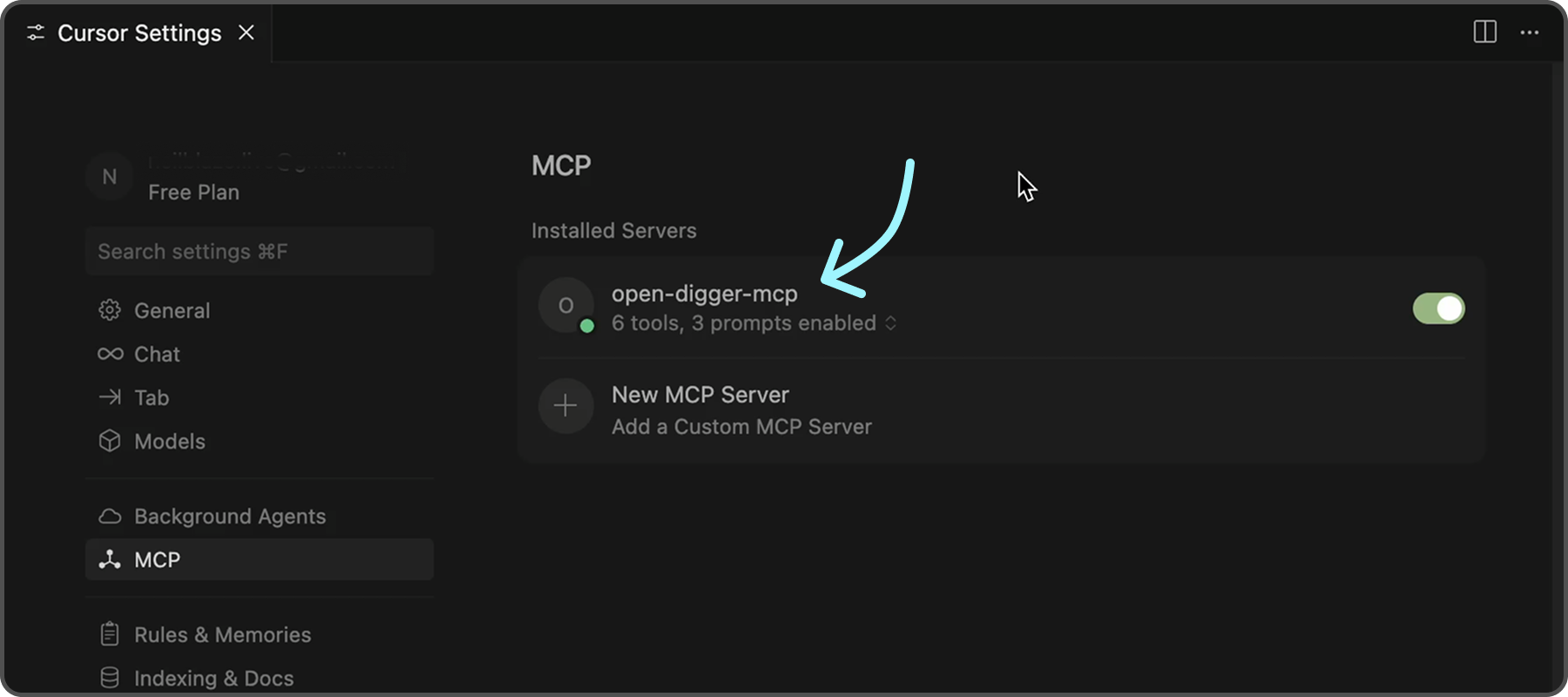
To further confirm that the server is functioning correctly, you can check the following indicators in Cursor:
- ✅ Green dot next to “open-digger-mcp” title
- ✅ “6 tools” displayed in server status
- ✅ “3 prompts” displayed in server status
- ✅ No error messages or red indicators
[!TIP] Please refer to
Installation.mdfor detailed installation instructions and configuration options for different IDEs.
Features
Tools (6 Available)
| No. | Tool | Description |
|---|---|---|
| 1 | get_open_digger_metric |
Fetch single repository metrics |
| 2 | get_open_digger_metrics_batch |
Batch operations for multiple metrics |
| 3 | compare_repositories |
Multi-repository comparative analysis |
| 4 | analyze_trends |
Growth trend analysis over time periods |
| 5 | get_ecosystem_insights |
Ecosystem analytics & insights |
| 6 | server_health |
System diagnostics and health monitoring (Beta) |
Prompts (3 Available)
repo_health_analysis- Comprehensive repository health reportsrepo_comparison- Competitive repository analysis
Установка
This server does not publish a one-line install command.
Open the repository installation guide Новичок в MCP? Начните с руководства на mcpskill.org →Конфигурация
{
  "mcpServers": {
    "open-digger": {
      "command": "node",
      "args": ["/full/path/to/dist/index.js"],
      "cwd": "/full/path/to/project",
      "env": {
        "CACHE_TTL_SECONDS": "300"
      }
    }
  }
}