
microsoft/vscode-copilotstudio
Developer toolsこのページは AI により自動翻訳されています。技術的な詳細は原文をご確認ください。 原文を見る
Copilot StudioのVSコード拡張子
概要
Visual Studio コードのCopilot Studio拡張は、Microsoft Copilot Studioエージェントの開発経験を高めるように設計されています。 Copilot Studio のエージェントコンポーネントの言語サポート、IntelliSense コードの補完と提案、および作成機能を提供します。 インストール後、エクステンションはCopilot Studioにサインインするように指示します。 その後、あなたの環境に関連するエージェントのリストを表示することができます。 知識のソース、アクション、トピック、トリガーなど、編集可能なコンポーネントを表示するエージェントをクローンします。 1. Visual Studio コードのプライマリサイドバーにあるCopilot Studioアイコンを選択します。 拡張子は、サインインする許可を要求します。 1。 Copilot Studio環境の適切な資格情報を選択して、サインインします。 1。 (オプション) Copilot Studioで目的のエージェントを開き、ブラウザのアドレスバーからURLをコピーします。 1. Visual Studio コードのパネルで、選択して下さい。 1.
概要(AI 翻訳)
Visual Studio コードのCopilot Studio拡張は、Microsoft Copilot Studioエージェントの開発経験を高めるように設計されています。 Copilot Studio のエージェントコンポーネントの言語サポート、IntelliSense コードの補完と提案、および作成機能を提供します。
インストール後、エクステンションはCopilot Studioにサインインするように指示します。 その後、あなたの環境に関連するエージェントのリストを表示することができます。 知識のソース、アクション、トピック、トリガーなど、編集可能なコンポーネントを表示するエージェントをクローンします。
Copilot Studioに初めて接続
-
Visual Studio コードのプライマリサイドバーにあるCopilot Studioアイコンを選択します。 拡張子は、サインインする許可を要求します。
-
[Allow]を選択し、Copilot Studio環境の適切な認証情報にサインインします。
エージェントをクローンする
1。 (オプション) Copilot Studioで目的のエージェントを開き、ブラウザのアドレスバーからURLをコピーします。
- Visual Studio コードのCopilot Studioパネルで、Clone エージェントを選択します。
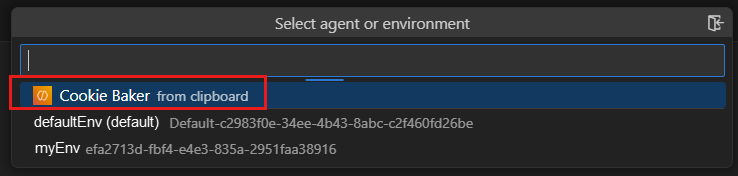
1。 既にURLをコピーしている場合は、エージェント(クリップボードからマーク)を選択します。 それ以外の場合は、目的の環境を選択し、希望するエージェントを選択します.
このページは AI により自動翻訳されています。技術的な詳細は原文をご確認ください。
README
以下は原文 README の抜粋です。原文を見る。
Copilot Studio Extension for Visual Studio Code
The Copilot Studio extension for Visual Studio Code is designed to enhance the development experience of Microsoft Copilot Studio agents. It provides language support, IntelliSense code completion and suggestions, and authoring capabilities for Copilot Studio agent components.
After installation, the extension prompts you to sign in to Copilot Studio. It can then show you a list of the agents associated with your environment. Clone an agent to see its editable components, including knowledge sources, actions, topics, and triggers.
Connect to Copilot Studio for the first time
-
Select the Copilot Studio icon in the primary side bar of Visual Studio Code. The extension asks for your permission to sign in.
-
Select Allow, and sign in with the appropriate credentials for your Copilot Studio environment.
Clone an agent
-
(Optional) Open the desired agent in Copilot Studio and copy its URL from your browser’s address bar.
-
In the Copilot Studio panel of Visual Studio Code, select Clone agent.
-
Select your agent (marked with “from clipboard” if you already copied the URL); otherwise, select the desired environment and then select the desired agent. The extension prompts you to select a folder to hold your agent’s files (similar to a local repository).
-
Select the desired folder.
Edit your agent
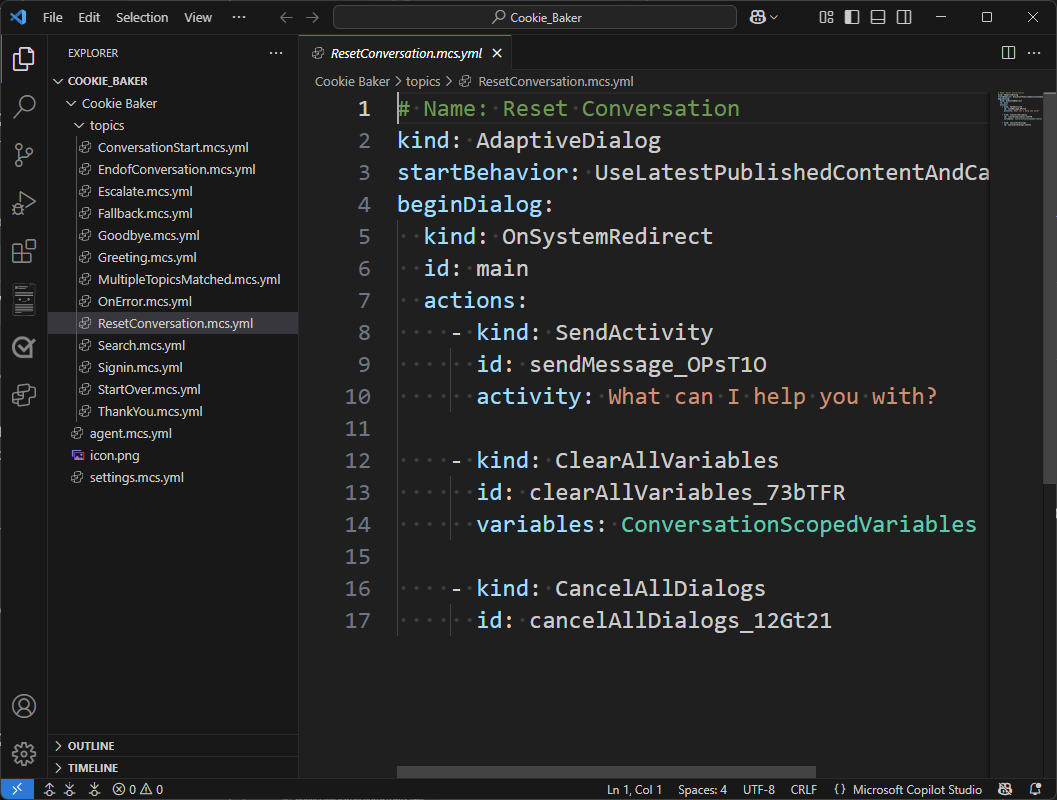
To edit any component, open the corresponding file and make the desired changes. Since Visual Studio Code natively supports YAML files, the Copilot Studio extension supports IntelliSense code completion and can provide guided tips.
Sync your changes
The Copilot Studio extension keeps your local workspace in sync with your agent. Use the sync commands in the Agent Changes view to manage changes between your local files and your Copilot Studio agent.
- Preview changes — See what’s different between your local workspace and the agent in Copilot Studio, without modifying any files.
- Get changes — Download the latest changes from your Copilot Studio agent into your local workspace.
- Apply changes — Upload your local edits to your Copilot Studio agent.
When you apply changes, they are saved directly to your agent’s environment. This is a live editing experience—your agent is updated immediately.
Repository Structure
src/
  LanguageServers/                        # .NET language server (C#)
CLaSP/ # Common Language Server Protocol framework推奨ツール
別のキーワードを試すか、フィルタを外してください。
インストール
npx skillfish add microsoft/vscode-copilotstudio