
jonemo/openpyxl-mcp-server
Developer toolsこのページは AI により自動翻訳されています。技術的な詳細は原文をご確認ください。 原文を見る
A thin wrapper around the OpenPyXl Python library that exposes some of its features as Model Context Protocol (MCP) server. This allows Claude and other MCP clients to fetch data from Excel files.
概要
A thin wrapper around the OpenPyXl Python library that exposes some of its features as Model Context Protocol (MCP) server. This allows Claude and other MCP clients to fetch data from Excel files. - https://openpyxl.readthedocs.io/en/stable/index.html - https://modelcontextprotocol.io/quickstart/server 1. Download the latest version of the executable from https://github.com/jonemo/openpyxl-mcp-server/releases. openpyxl_mcp_server is for MacOS, openpyxl_mcp_server.exe is for Windows. 2. For MacOS users, make sure to set executable permissions on the downloaded file: chmod a+x /path/to/openpyxl_mcp_server (replace /path/to/ with your actual download location). 3. Configure your MCP Client. Most commonly this will be Claude Desktop, see instructions in next section. Windows will try to talk you out of running a random executable downloaded from the internet. You will have to click "Keep" or "Keep anyway" in various places to convince it to not delete the file.
README
以下は原文 README の抜粋です。原文を見る。
openpyxl_mcp_server
What is this?
A thin wrapper around the OpenPyXl Python library that exposes some of its features as Model Context Protocol (MCP) server. This allows Claude and other MCP clients to fetch data from Excel files.
Related links:
- https://openpyxl.readthedocs.io/en/stable/index.html
- https://modelcontextprotocol.io/quickstart/server
Installation
General Steps
- Download the latest version of the executable from https://github.com/jonemo/openpyxl-mcp-server/releases.
openpyxl_mcp_serveris for MacOS,openpyxl_mcp_server.exeis for Windows. - For MacOS users, make sure to set executable permissions on the downloaded file:
chmod a+x /path/to/openpyxl_mcp_server(replace/path/to/with your actual download location). - Configure your MCP Client. Most commonly this will be Claude Desktop, see instructions in next section.
Windows will try to talk you out of running a random executable downloaded from the internet. You will have to click “Keep” or “Keep anyway” in various places to convince it to not delete the file. The details of this depend on which browser you use and what your Windows Defender settings are.
Alternatively, if you don’t trust my executables, you can also install the source version of the code directly from this repo. See the “From Source” section below.
Configuring Claude Desktop
Note that this only works with the Claude Desktop app, not with Claude running in the web browser.
- Have Claude Desktop installed.
- Have the MCP server executable downloaded (see previous section). This assumes that you have downloaded the executable to your Downloads folder. You can use any other folder, adjust the paths in the configuration below accordingly.
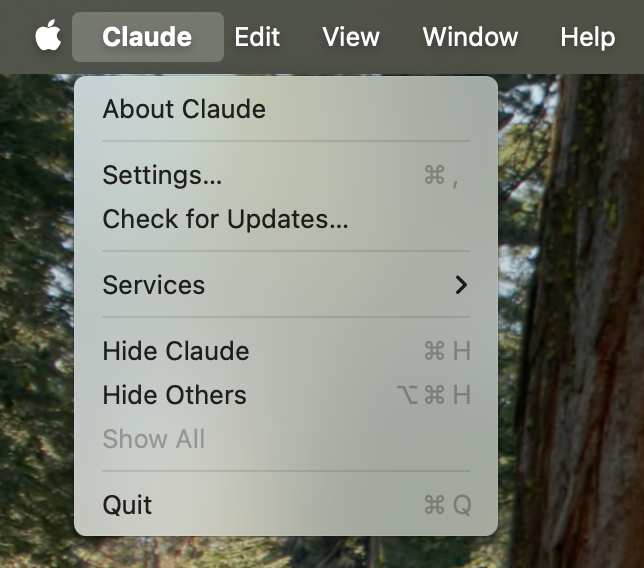
- In Claude Desktop, open the “Settings…” menu:
- Navigate to the “Developer” section of the settings.
- Click “Edit Config”. This will create a config file for MCP servers if you didn’t have one already.
The default location of this file is:
- macOS:
~/Library/Application Support/Claude/claude_desktop_config.json - Windows:
%APPDATA%\Claude\claude_desktop_config.json
- macOS:
- On MacOS, add the following to your
claude_desktop_config.json. Replace `` with your MacOS username. If you already use other MCP servers, you’ll have to merge the JSON into the existing contents.{ "mcpServers": { "inspect_excel_xlsx_file": { "command": "/Users//Downloads/openpyxl_mcp_server", "args": [] } } } - On Windows, add the following to your
claude_desktop_config.json. Replace `` with your MacOS username. If you already use other MCP servers, you’ll have to merge the JSON into the existing contents.{ "mcpServers": { "inspect_excel_xlsx_file": {
インストール
This server does not publish a one-line install command.
Open the repository installation guide MCP 初心者?mcpskill.org のガイドから始めましょう →設定
{
  "mcpServers": {
    "inspect_excel_xlsx_file": {
"command": "/Users/<YOUR-USERNAME>/Downloads/openpyxl_mcp_server",
"args": []
}
}
}