
ClaudeR - The Modern Researcher's Toolkit Connect RStudio to Claude Code, Codex, Gemini CLI, or any MCP-based LLM agent for interactive coding, multi-agent orchestration, and automated manuscript...
概要
ClaudeR - The Modern Researcher's Toolkit Connect RStudio to Claude Code, Codex, Gemini CLI, or any MCP-based LLM agent for interactive coding, multi-agent orchestration, and automated manuscript...
README
ClaudeR is an R package that forges a direct link between RStudio and MCP configured LLM agents like Claude Code or Codex. This allows interactive coding sessions where the agent can execute code in your active RStudio environment so it can see the executed code and any generated plots in real-time. If you need help editing a script, a quick analysis done, or an LLM to audit your statistical claims against any manuscript before submission: ClaudeR has got your back.
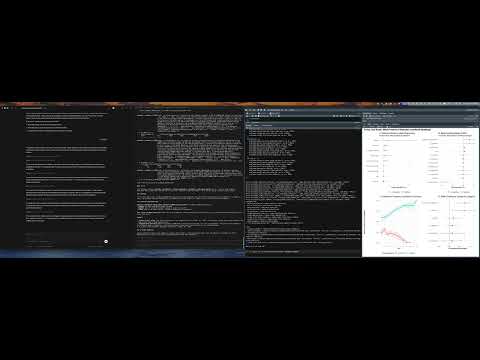
This package, additionally, allows multiple agents to work on one script, or it can make multiple RStudio windows siloed so multiple agents can operate independently on different datasets. It’s also compatible with Cursor and any service that support MCP servers.
Why this instead of the subscription tools? Most paid “AI for researchers” products are workflow wrappers: a prompt, a free public API, and the same frontier models you already pay for through a CLI subscription. ClaudeR’s answer is structural, beyond just price. The work happens in your live R session, where your actual data and models live, with a per-agent audit trail of every line executed, checkpoints that make any step reversible, and findings written back into your actual documents as Word comments. A web wrapper cannot offer any of that.
Quick Start
# Install
if (!require("devtools")) install.packages("devtools")
devtools::install_github("IMNMV/ClaudeR")

# Set up your AI tool
library(ClaudeR)
install_clauder()          # For Claude Desktop / Cursor
install_cli(tools = "claude")  # For Claude Code CLI

# Start the server in RStudio
claudeAddin()
AI agents: See llms-install.md for automated setup instructions.
Demo
| Single agent via Claude Desktop App | Multi-agent: Codex + Claude Code via CLI | GPT 5.4 Codex: Data analysis + Quarto report |
|---|---|---|
 |
 |
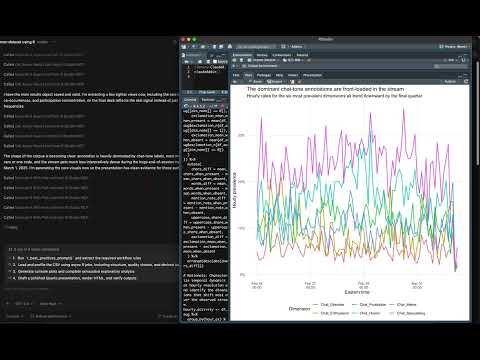 |
Table of Contents
- Quick Start
- Features
- How It Works
- Reviewer Zero
- R Best Practices Protocol
- Multi-Agent Coordination Protocol
- AI-Driven Data Annotation
- CLI Integration
- Security Model
- Installation
- Usage
- Logging Options
- Example Interactions
- Important Notes
- Troubleshooting
- Limitations
- License
- Contributing
Features
ClaudeR empowers your AI assistant with a suite of tools to interact with your R environment:
execute_r: Execute R code and return the output.execute_r_with_plot: Execute R code that generates a plot that the model can see.execute_r_async: Execute long-running R code asynchronously (>25 seconds). Returns a job ID for polling.get_async_result: Poll for the result of an async job. Includes a built-in delay to throttle polling.list_sessions: List all active RStudio sessions the agent can connect to.connect_session: Connect to a specific RStudio session by name for multi-session workflows.get_session_history: View execution history filtered by agent ID.read_file: Read any file from disk (.R, .qmd, .csv, .log, etc.) without needing it open in RStudio. Manuscripts are handled transparently:.docxand.pdfare extracted as structured text with headings marked and table cells kept separated. Supportsstart_line/end_linepagination for large files.check_cross_references: Deterministic internal-reference integrity: flags dangling mentions (“see Table 4” with no Table 4) and tables/figures never referenced in the text.annotate_manuscript(R function, used by the audit protocols): writes findings into a copy of a.docxas native, anchored Word comments, so authors can accept/dismiss the audit inside Word.reconcile_values: The audit backbone. Extracts every numeric value from a manuscript and reconciles each against the numbers your code actually produced (logs, outputs, tables), respecting displayed precision, commas, percents, scientific notation, and< .001thresholds. Returns a per-value registry so nothing can be silently skipped.get_active_document: Get the content of the active document in RStudio.get_r_info: Get information about the R environment.modify_code_section: Modify a specific section of code in the active document.insert_text: Insert text at the current cursor position or a specific line/column in the active document.get_viewer_content: Read HTML content from the viewer pane (plotly, DT, leaflet widgets) with pagination support.clean_error_log: Clean a session log by removing error blocks and their duplicate predecessors, leaving only working code and the fixes that followed.search_project_code: Search for a regex pattern across project source files (.R, .Rmd, .qmd). Returns file, line number, and snippet.probe_scripts: Source R scripts in a clean background session and report what objects are created (names, classes, dimensions) without affecting your main session.verify_references: Verify academic references: DOIs are checked against CrossRef (with retraction/correction flags from Crossref update notices), arXiv IDs are resolved with a published-version check, and DOI-less entries get bibliographic matching with candidate DOIs.search_citations: Search the OpenAlex scholarly index for the correct reference for a claim (title, authors, year, venue, DOI, citation count) instead of citing from memory.get_bibtex: Fetch the canonical BibTeX entry for a DOI via doi.org content negotiation.generate_notebook: Turn a session log into a narrated Quarto lab notebook; rendering re-runs the code so outputs and plots regenerate.generate_codebook: Scan a project and emit the codebook OSF and journals require: versioned package list, script inventory, per-variable summaries (class, n, missingness), and outputs produced.annotate_manuscript()(R function, driven by Reviewer Zero’s write-back step): inject audit findings into a .docx as native Word comments the author can accept or dismiss.checkpoint_session: Snapshot the R global environment to disk before risky operations. Checkpoints survive R restarts.restore_session: Roll the environment back to a checkpoint. The current state is saved first, so a restore is itself undoable. Also callable from the console (ClaudeR::restore_session()) when you need to recover from an agent mistake yourself.list_checkpoints: List saved checkpoints for the current session.create_task_list: Generate a task list based on your prompt to prevent omissions in long-context tasks.update_task_status: Track progress for each task in the generated list.
With these tools, you can:
- Direct Code Execution: The AI can write, execute, and install packages in your active RStudio session.
- Feedback & Assistance: Get explanations of your R scripts or request edits at specific lines.
- Visualization: The AI can generate, view, and refine plots and visualizations.
- Data Analysis: Let the AI analyze your datasets and iteratively provide insights.
- Multi-Agent Workflows: Run Claude Desktop, Claude Code, and Gemini CLI on the same R session simultaneously. Each agent is uniquely identified, and they can see each other’s work through shared history and log files.
- Long-Running Analysis: Async execution handles model fitting, simulations, and large data processing without timing out.
- Code Logging: Save all code executed by the AI to log files for future reference. Every entry is tagged with the agent that ran it.
- Console Printing: Print the AI’s code to the console before execution.
- Environment Integration: The AI can access variables and functions in your R environment.
- Dynamic Summaries: Summaries can dynamically pull results from objects and data frames to safeguard against hallucinations.
- Quarto Renders: The AI can create and render Quarto presentations. For best results, ask for a .qmd file and for it to be rendered in HTML when it’s finished.
- Reviewer Zero: A built-in protocol for automated academic auditing. The AI reads a manuscript block-by-block, extracts every statistical claim into a registry, verifies its extraction, then recomputes each claim against the author’s R code. Run
reviewer_zero_prompt()for the full protocol. See the Reviewer Zero section below.
Reviewer Zero: Automated Academic Audits
ClaudeR includes a built-in protocol for AI-driven technical review of academic manuscripts. The AI acts as “Reviewer Zero”: systematically verifying that every p-value, coefficient, and confidence interval in your paper matches the code that produced it.
How it works (core protocol):
- Extract: The AI reads your manuscript block-by-block with paginated
read_file(.docxand.pdfare extracted with structure preserved, including table cells), pulling every quantitative and methodological claim into a structured registry (a data.frame visible in your RStudio Environment pane). Audit-clean print options are set first, so console output can never truncate the precision being checked. - Verify: The AI re-reads the source lines for each claim to confirm it didn’t misread values. No code runs until every claim is verified.
- Reconcile & Recompute: The backbone is the value sweep:
reconcile_valuesenumerates every numeric value in the manuscript and supplement and reconciles each against the corpus of numbers your code actually produced, at the document’s displayed precision. Every unmatched value must be recomputed or explained before the audit may proceed: completeness by construction, not by diligence. Claim-level recomputation then runs against clean-room script outputs (probe_scriptswith output capture), so a stale object in your session can never make a check agree spuriously. Methodological claims (e.g., “zero variance made testing impossible”) are tested directly rather than accepted at face value. - References:
verify_referenceschecks every DOI against CrossRef and flags metadata mismatches, non-resolving DOIs, and retracted or corrected papers; arXiv preprints are resolved and matched against published versions; DOI-less references get bibliographic matching. In-text citations are cross-checked against the bibliography.
Optional extensions, composable via arguments (examples below): a preregistration deviation audit (prereg_path), a specification-curve robustness check (robustness), write-back of every finding as Word comments (writeback), and Referee Mode (referee, or standalone referee_prompt()), a substantive review of the reasoning itself: argument logic, methods, internal consistency, evidence presentation, and framing, run by parallel reviewer subagents with configurable model tiers, adversarial stances, and cross-vendor dispatch, with a deterministic check_cross_references pass and delivery as anchored Word comments.
To get started:
# Print the full protocol prompt to give to your AI agent
reviewer_zero_prompt()

# Optional Pass 5: audit the analysis against your preregistration.
# Produces a deviation report (followed / disclosed deviation /
# undisclosed deviation / not executed) plus a list of exploratory
# analyses that are not labelled as such.
reviewer_zero_prompt(prereg_path = "prereg.docx")

# Optional Pass 6: specification-curve robustness check. The agent
# enumerates defensible alternative analysis choices for the primary
# claims, runs the grid in background jobs, and reports a sensitivity
# table plus a specification curve.
reviewer_zero_prompt(robustness = TRUE)

# Optional write-back: every flagged claim becomes a native Word comment
# in a copy of the manuscript, so you can accept/dismiss findings in Word.
reviewer_zero_prompt(writeback = TRUE)

# All extensions together
reviewer_zero_prompt(prereg_path = "prereg.docx", robustness = TRUE, writeback = TRUE)

# Referee Mode, configured. Quick-and-dirty pass on a fast model tier:
referee_prompt(model = "haiku")

# Submission-grade: strongest tier, adversarial reviewer pairs per lens
# (prosecutor + verifier), and lenses dispatched across model vendors
# (codex/agy/qwen) so same-model blind spots can't hide the same flaw twice:
referee_prompt(model = "opus", reviewers_per_lens = 2, cross_vendor = TRUE)

# Mix tiers per lens: deep model where the reasoning is hard, fast elsewhere
referee_prompt(model = c(logic = "opus", methods = "opus", consistency = "haiku"))
The protocol works with .docx, .pdf, .qmd, .Rmd, .tex, or plain text manuscripts and supports multi-script R projects.
R Best Practices Protocol
ClaudeR comes with a built-in statistical analysis protocol inspired by the modeling workflows I learned from my statistics courses and refined through oof moments from using AI agents in real statistical work. The goal is to steer models with natural language to reproducible, theory-driven analysis which covers EDA, assumption checking, model building, diagnostics, multiple-corrections, and reporting.
# Print the full protocol to give to your AI agent
r_best_practices_prompt()
You can also just tell the agent to run ClaudeR::r_best_practices_prompt() and it will read the protocol itself.
Multi-Agent Coordination Protocol
When two or more agents share the same RStudio session, they need a way to divide work without stepping on each other. The multi-agent protocol handles this with a structured workflow: agents check in by reading the session log, the first agent creates a task plan, agents claim tasks before starting them, and they cross-check each other’s work when done.
# Print the full protocol to give to your AI agents
multi_agent_prompt()
You can also just tell the agents to run ClaudeR::multi_agent_prompt() and they will read the protocol themselves.
AI-Driven Data Annotation
ClaudeR includes a purpose-built annotation workflow for labelling CSV datasets with an AI agent. The agent works through the dataset row by row using two dedicated MCP tools, with no code required on the agent’s end.
CSV format: add a _schema column to your file and define the annotation fields in the first row using a simple type syntax:
text,label,confidence,_schema
"Some text","","","label:choice[positive,negative,neutral];confidence:float[0,1]"
"More text","","",""
Supported types: choice[a,b,c], float[min,max], int[min,max], bool, text
Running an annotation session:
# Print the full protocol to give to your agent
data_annotation_prompt()
Or tell the agent to run ClaudeR::data_annotation_prompt() and it will read the protocol itself. The agent then calls load_annotation_data to start and annotate to label each row. The original file is never modified, and sessions are automatically resumable if interrupted.
How It Works
ClaudeR uses the Model Context Protocol (MCP) to create a bidirectional connection between an AI assistant and your RStudio environment. MCP is an open protocol from Anthropic that allows the AI to safely interact with local tools and data.
Here’s the workflow:
- The Python MCP server acts as a bridge.
- The AI sends a code execution request to the MCP server.
- The server forwards the request to the R add-in running in RStudio.
- The code executes in your R session, and the results are sent back to the AI.
This architecture ensures that the AI can only perform approved operations through well-defined interfaces, keeping you in complete control of your R environment.
CLI Integration
ClaudeR supports command-line interface (CLI) agents: the Claude Code CLI, the OpenAI Codex CLI, the Qwen Code CLI, the Google Antigravity CLI (agy), and the legacy Google Gemini CLI (which shuts down June 18, 2026; agy is its replacement). This is ideal for developers who prefer a terminal-based workflow, allowing you to interact with your AI assistant directly from the command line while maintaining a live connection to your RStudio session.
Security Model
ClaudeR is a supervised power tool. The agent executes R code in your live RStudio session, the same session where your data and variables live. You should review what it does, just as you would review a colleague’s code before running it.
Server authentication
Binding to 127.0.0.1 is not a security boundary. Any other process on your machine can post code to the port, and so can any webpage you visit, via a cross-origin POST that browsers send without a CORS preflight. Either one is arbitrary code execution in your R session. ClaudeR has two defences:
- Origin block (always on). Any request carrying an
Originheader is rejected with a 403. Only browsers setOrigin, and the MCP bridge never does, so this closes the drive-by-webpage vector with no configuration and no compatibility cost. - Session token (opt-in). On Start Server, ClaudeR mints a random token and writes it to the discovery file (mode
0600, readable only by you). The bridge reads it and echoes it back asX-Clauder-Token. Tick Require auth token under Advanced to reject every request that lacks it. This closes the local-process vector too.
The token is off by default because enforcing it rejects any bridge older than clauder-mcp 0.6.0, which would break existing installs on upgrade. To turn it on:
uvx --refresh clauder-mcp # get a bridge that sends the token
Then tick Require auth token in the addin’s Advanced panel and restart the server. Until you do, the addin prints a one-time console notice when a token-less bridge connects.
Guardrails (not a sandbox)
validate_code_security() rejects the obvious footguns: system(), system2(), shell(), rstudioapi::terminal, and recursive/wildcard deletes. Treat this as a seatbelt, not a sandbox. It is a regex blocklist and it is trivially bypassable by design (get("system")(...), do.call, eval(parse(...)), and so on). It is there to catch careless generation, not a determined agent. The agent’s job is to run arbitrary R, so there is no version of this that is airtight.
What ClaudeR does NOT restrict
The agent can read any file you can read, install packages, overwrite objects in your environment, make network calls, and consume compute. These are necessary for it to be useful. So:
- Use logging (enabled by default) for a full record of every line executed and which agent ran it.
- Work in a project directory to limit what the agent sees by default.
- Review before trusting: especially for Reviewer Zero audits, treat the output as a draft that you verify.
Prompt injection: read this before auditing someone else’s manuscript
ClaudeR deliberately combines three things: an agent that can execute arbitrary R, tools that pull in untrusted third-party content (read_file, get_viewer_content, verify_references, load_annotation_data), and an R session that can write files and reach the network.
That combination means a manuscript, CSV, or HTML widget authored by someone else is untrusted input on a path to code execution. Reviewer Zero’s whole premise (point the agent at a paper you did not write) is exactly the risky shape. A document containing text aimed at the model rather than the reader can redirect what the agent does.
No filter fixes this, because running code is the feature. Mitigate by treating agent sessions over third-party documents as you would running a stranger’s script: do it in a project directory, keep logging on, read the log, and don’t leave credentials lying around in the working directory or environment.
Restrictions apply only to code executed by the AI. Your manually executed R code is unaffected.
Installation
Step 1: Install ClaudeR from GitHub
Run this command in your RStudio console:
if (!require("devtools")) install.packages("devtools")
devtools::install_github("IMNMV/ClaudeR")
Step 2: Run the Correct Installer
Choose the option that matches your workflow.
Option A: For Desktop Apps (Claude Desktop / Cursor)
This function configures the MCP config file automatically for desktop applications. By default it uses uvx to run the clauder-mcp PyPI package, which handles all Python dependencies automatically.
# Load the package
library(ClaudeR)

# Run the installer for Claude Desktop
install_clauder()

# Optional: For Cursor users
# install_clauder(for_cursor = TRUE)
For users who cannot use uvx (e.g. restricted environments), fall back to the legacy Python path method:
library(ClaudeR)
install_clauder(use_uvx = FALSE, python_path = "/path/to/your/python")
Option B: For CLI Tools (Claude Code / Codex / Gemini)
This non-interactive function generates the exact command or JSON configuration needed for your CLI tool.
library(ClaudeR)

# For Claude Code CLI
install_cli(tools = "claude")

# For OpenAI Codex CLI
install_cli(tools = "codex")

# For Qwen Code CLI
install_cli(tools = "qwen")

# For Google Antigravity CLI (agy, Gemini CLI's replacement)
install_cli(tools = "agy")

# For Google Gemini CLI (legacy; shuts down June 18, 2026)
install_cli(tools = "gemini")
For users who cannot use uvx, fall back to the legacy Python path method:
install_cli(tools = "claude", use_uvx = FALSE, python_path = "/path/to/my/python")
After running the function, you must manually apply the configuration:
- For Claude / Codex / Qwen: Copy the command printed in the R console and run it in your terminal.
- For Antigravity (agy): Copy the generated JSON into
~/.gemini/config/mcp_config.json(global) or.agents/mcp_config.json(per-workspace). - For Gemini (legacy): Copy the generated JSON and manually add it to your
~/.gemini/settings.jsonfile.
After setup, quit and restart any active Desktop Apps or terminal sessions for the new settings to load.
Note: If you upgrade R versions, re-run
install_cli()orinstall_clauder()to update the MCP server path. The CLI installer automatically removes stale registrations before adding fresh ones.
Usage
Part 1: In RStudio
For all workflows, you must first start the ClaudeR server from RStudio.
library(ClaudeR)
claudeAddin()
The ClaudeR add-in will appear in your RStudio Viewer pane. Click “Start Server”. Keep this window active while using your preferred tool.
Part 2: In Your AI Tool
- For Desktop Apps: Open the Claude Desktop App or Cursor and begin your session.
- For CLI Tools: Open your terminal and use the
claudeorgeminicommands to start interacting with your AI assistant.
Note: You can regain console/active document control by clicking the stop button in the RStudio console. This closes the Shiny UI but the MCP server keeps running in the background and your AI agents stay connected. Re-run
claudeAddin()to bring the viewer pane back with the same server state (port, session name, execution count). To fully stop the server, click “Stop Server” in the UI before closing.
Logging Options
- Print Code to Console: See the AI’s code in your R console before it runs. The code will be preceded by the header:
### LLM [agent-id] executing the following code ###. - Log Code to File: Save all executed code to a log file. Each entry is tagged with the agent ID that executed it, so you can trace which AI agent ran what.
- Custom Log Path: Specify a custom location for log files.
- Descriptive Filenames: Log files are named
clauder___.R(e.g.,clauder_default_8787_20260301_143022.R) so you can tell at a glance which session produced which log. - Reproducibility Header: Each log starts with a header containing the date, working directory, and full
sessionInfo()output (R version, platform, attached/loaded packages). This makes logs self-documenting for reproducibility. - Export Clean Script: Click “Export Clean Script” in the logging panel to produce a runnable
.Rfile stripped of all timestamps and log headers. Error blocks are kept as comments so you can see what went wrong. Also callable from the console withexport_log_as_script().
A new log file is created each time you click Start Server. All code executed by agents appends to that file until you stop and start the server again.
Example Interactions
- “I have a dataset named
datain my environment. Perform exploratory data analysis on it.” - “Load the
mtcarsdataset and create a scatterplot ofmpgvs.hpwith a trend line.” - “Fit a linear model to predict
mpgbased onwtandhp.” - “Generate a correlation matrix for the
irisdataset and visualize it.” - “I have a qmd file active. Please make a nice quarto presentation on gradient descent. The audience is very technical. Make sure it looks smooth. Save the presentation in /Users/nyk/QuartoDocs/”
If you can do it with R, your AI assistant can too.
Important Notes
- Session Persistence: Variables, data, and functions created by the AI remain in your R session.
- Code Visibility: By default, the AI’s code is printed to your console.
- Port Configuration: The default port is
8787, but you can change it if needed. On RStudio Server, 8787 is the IDE’s own port, so pick a different one (e.g. 8788). - Package Installation: The AI can install packages. Use clear prompts to guide its behavior.
Troubleshooting
- Connection Issues:
- Ensure your AI tool is configured correctly.
- Verify the Python path in your
configor CLI command. - Make sure the server is running in the add-in.
- Restart RStudio if the port is in use.
- Python Dependency Issues:
could not find function install_clauder: Restart your R session (Session -> Restart R) and try again.- MCP Server Failed to Start: If using
uvx, ensureuvis installed (curl -LsSf https://astral.sh/uv/install.sh | sh). If using the legacy method, this usually means the wrong Python environment was detected. Re-run the installer with the correctpython_pathor switch touse_uvx = TRUE.
- AI Can’t See Results:
- Ensure the add-in window is open and the server is running.
- Plots Not Displaying:
- Instruct the AI to wrap plot objects in
print()(e.g.,print(my_plot)). - Tell the AI to use the
execute_r_with_plotfunction.
- Instruct the AI to wrap plot objects in
- Long-Running Code Timing Out:
- Ask the AI to use
execute_r_asyncfor code that takes longer than 25 seconds. - The AI will automatically poll for results using
get_async_result. - Async jobs run in a separate R process via
callrand do not have access to your main session’s environment. The AI must write self-contained code that usessaveRDS()to pass data in and write results out, then loads them back into the main session after the job completes.
- Ask the AI to use
- Server Restart Issues:
- If you see an “address already in use” error after restarting the server, it’s a UI bug. The server is still active. If you encounter connection issues, switch the port number in the Viewer Pane or restart RStudio.
- If the AI still can’t connect, click “Force Release Port” under the Advanced section. This force-kills whatever process is holding the port so you can start fresh.
- Stale MCP Path After R Upgrade:
- If tools stop working after upgrading R, re-run
install_cli()orinstall_clauder()to update the script path.
- If tools stop working after upgrading R, re-run
Limitations
- Each R session can connect to one Claude Desktop/Cursor app at a time. However, multiple CLI agents (Claude Code, Codex, Qwen, agy) can share the same session alongside a Desktop app. To isolate agents, run separate RStudio windows with different session names and ports.
- You can close the Shiny UI (Stop button in the console) to work alongside the AI. The server keeps running in the background and agents stay connected; re-run
claudeAddin()to bring the UI back, or click Stop Server in the UI to fully stop it. - R is single-threaded, but async jobs run in a separate process via
callrso the main session stays responsive. The background process does not share the main session’s environment, so async code must be self-contained.
License
This project is licensed under the MIT License. See the LICENSE file for details.
Contributing
Contributions are welcome! Please feel free to submit a Pull Request.
インストール
uvx --refresh clauder-mcp # get a bridge that sends the token