
gethopp/figma-mcp-bridge
Developer toolsこのページは AI により自動翻訳されています。技術的な詳細は原文をご確認ください。 原文を見る
gethopp/figma-mcp-bridgeは、https://github.com/gethopp/figma-mcp-bridge.からインポートされたMCPサーバー候補です。
概要
gethopp/figma-mcp-bridgeは、https://github.com/gethopp/figma-mcp-bridge.からインポートされたMCPサーバー候補です。
概要(AI 翻訳)
- デモ
- クイックスタート
- 利用可能なツール
- 地域開発
- 構造
- 仕組み
[!注] Figmaデスクトップアプリ(macOS/Windows)が必要です。ブラウザ版のFigmaは開発プラグインのインポートをサポートしていません。
Figma-Context-MCPのような他にも素晴らしいFigma MCPサーバーは存在しますが、無料ユーザーに対するAPIの制限が問題の一つです。
無料アカウントのリクエストは月に6件、はい月です。
Figma MCP Bridgeはこの問題の解決策です。これはプラグイン+MCPサーバーで、Figma APIのレート制限に違反せずにライブFigmaドキュメントデータをAIツールにストリーミングするため、私たち✊にとってはFigma MCPです
複数のFigmaファイルを同時に接続しています。各ファイルのプラグインを開くと、AIエージェントは[[T0]で任意のファイルにクエリを送ることができます。シングルファイルの設定は変更なしで全く同じように動作します。
また、安全なエージェント主導編集のための小規模なオプトイン制の作成ツールも含まれており、以下の編集ノートを参照してください。
デモ
Figma MCP Bridgeを使ってカーソルでUIを構築するデモをご覧ください
クイックスタート
1.お気に入りのAIツールにMCPサーバーを追加してください
AIツールのMCP設定に以下のものを追加してください(例:カーソル、Windsurf、Claude Desktop):
このページは AI により自動翻訳されています。技術的な詳細は原文をご確認ください。
README
以下は原文 README の抜粋です。原文を見る。
Figma MCP Bridge

[!NOTE]
Requires the Figma desktop app (macOS/Windows). The browser version of Figma does not support importing development plugins.
While other amazing Figma MCP servers like Figma-Context-MCP exist, one issues is the API limiting for free users.
The limit for free accounts is 6 requests per month, yes per month.
Figma MCP Bridge is a solution to this problem. It is a plugin + MCP server that streams live Figma document data to AI tools without hitting Figma API rate limits, so its Figma MCP for the rest of us ✊
It supports multiple Figma files connected simultaneously; open the plugin in each file and your AI agent can query any of them by fileKey. Single-file setups work exactly as before with no changes required.
It also includes a small, opt-in set of write tools for safe agent-driven edits — see Editing Notes below.
Demo
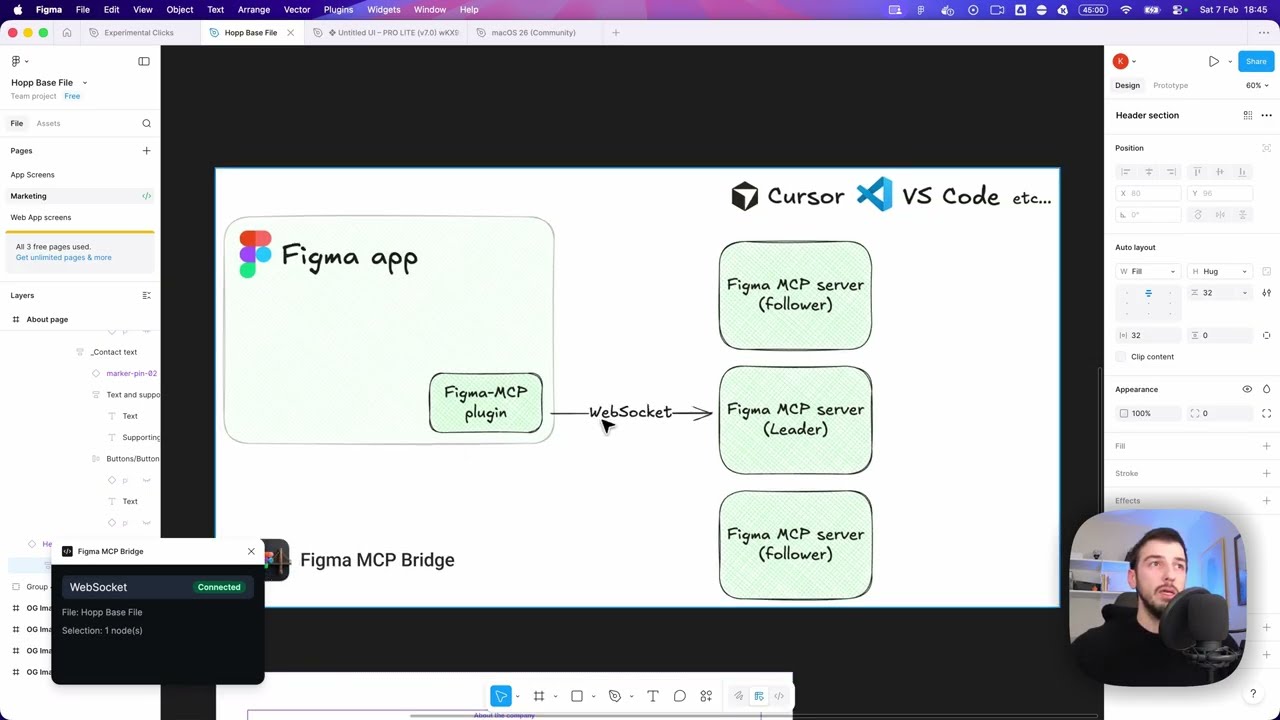
Watch a demo of building a UI in Cursor with Figma MCP Bridge
Quick Start
1. Add the MCP server to your favourite AI tool
Add the following to your AI tool’s MCP configuration (e.g. Cursor, Windsurf, Claude Desktop):
{
  "figma-bridge": {
    "command": "npx",
    "args": ["-y", "@gethopp/figma-mcp-bridge"]
  }
}
That’s it — no binaries to download or install.
2. Add the Figma plugin
Download the plugin from the latest release page, then in Figma go to Plugins > Development > Import plugin from manifest and select the manifest.json file from the plugin/ folder. The same plugin runs in Figma design files, Dev Mode (read-only), and FigJam boards.
3. Start using it 🎉
Open a Figma file, run the plugin, and start prompting your AI tool. The MCP server will automatically connect to the plugin.
To work across multiple files, just open the plugin in each Figma file. The bridge keeps all connections active and your AI agent can target any of them by fileKey.
If you want to know more about how it works, read the How it works section.
Available Tools
| Tool | Description |
インストール
npx -y @gethopp/figma-mcp-bridge