
szamosimate/tapir-archicad-mcp
Developer toolsConnect your AI assistant to Archicad. Use natural language to explore projects and automate workflows through the Tapir add-on and the official Archicad JSON API.
Overview
Connect your AI assistant to Archicad. Use natural language to explore projects and automate workflows through the Tapir add-on and the official Archicad JSON API.
README
Archicad Tapir MCP Server
Connect your AI assistant to Archicad. Use natural language to explore projects and automate workflows through the Tapir add-on and the official Archicad JSON API.





See it in action
Astra uses photos and a plan as references to model in Archicad.
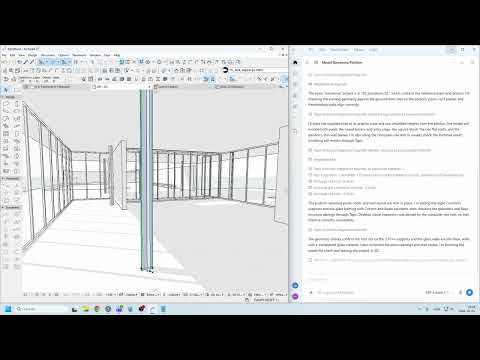
What can it do?
- Inspect open projects, elements, properties, and attributes.
- Find elements that match conditions on type, properties, and classifications.
- Create and modify model elements, and work with views and layouts.
- Export project data and use supported IFC and Teamwork commands.
- Access 843 Archicad commands, discovered on demand by your assistant.
- Connect to multiple running Archicad instances.
Quick start
Before installing the MCP server, make sure Archicad is running on Windows or macOS and install these two requirements:
- Tapir add-on — an Archicad add-on that gives the server access to Archicad’s automation commands. Install it in Archicad for the version you use.
- uv — a tool that installs and runs the MCP server and its dependencies. Install it on the computer running Archicad.
You’ll also need an MCP client: the AI application that connects to the server.
Ask your AI to install it
Copy this prompt into your AI assistant:
Install the Archicad Tapir MCP server for my MCP client, following the instructions at https://github.com/SzamosiMate/tapir-archicad-MCP/blob/master/docs/setup-and-configuration.md. Help me verify that it can connect to my running Archicad instance.
Install it yourself
If your client supports MCP bundles, download tapir-archicad.mcpb and open it in your client. The client must be able to find uv on its PATH.
Prefer the old-school approach? Follow the manual setup instructions—editing a config file is optional hacker cred.
Try it
With Archicad running, ask your assistant:
What Archicad projects do I have open?
The assistant can list ready instances, their project names and ports, and report instances that are unavailable. If you have multiple projects open, specify the port when asking it to work on one.
How it works
Your MCP client runs this server, which connects to Archicad through multiconn_archicad. The server exposes five MCP tools for finding instances, searching and browsing commands, looking up their schemas, executing commands, and checking long-running jobs. Your assistant can search for several workflow steps at once and narrow results by command group.
Important to know
The server can create, modify, and delete model elements, export files, and interact with Teamwork. Project names, paths, and model data returned by commands are sent to your MCP client. Review changes made to your projects and use a copy when experimenting.
Available commands depend on your installed Archicad and Tapir versions. Instance discovery reports a missing Tapir add-on as unavailable and warns when the installed Tapir version differs from the version supported by the server.
Documentation
See Setup and configuration for client setup, troubleshooting, server options, HTTP transports, jobs, and pagination.
See Command discovery for keyword search, follow-up searches, and benchmarks.
See Element queries for finding and filtering elements.
Development and contributing
To develop the server, clone the repository and run uv sync from the project directory. Then configure your MCP client to run the Python interpreter from that checkout’s virtual environment:
| Client setting | Windows | macOS |
|---|---|---|
| Command | \.venv\Scripts\python.exe |
/.venv/bin/python |
| Arguments | -m, tapir_archicad_mcp.server |
-m, tapir_archicad_mcp.server |
Replace `` with the absolute path to your checkout. This runs the local code instead of the published uvx package. Restart the server in your client after making changes. Run tests with uv run pytest tests.
Generated commands
The Archicad command wrappers in src/tapir_archicad_mcp/tools/generated/ are generated from the exact multiconn-archicad version pinned in pyproject.toml. The generator reads command metadata from that release’s Git tag; scripts/generator_config.py controls naming, exclusions, pagination, and image handling, and scripts/generate_tools.py produces the wrappers. To change generated behavior, review the generator and its configuration rather than only editing the generated files, since regeneration can overwrite those edits.
Contributions
Ideas, bug fixes, and small, focused improvements are welcome. For larger features, architectural changes, or major rewrites, please open an issue to discuss the approach before investing in a pull request. I may prefer to work through those changes myself as part of understanding and shaping the design.
AI-assisted contributions are welcome. Please keep pull request descriptions short and in plain language: explain the problem, your solution, and how you checked it. For larger changes in particular, understand the proposed implementation and be ready to discuss the design and trade-offs.
License and acknowledgments
This project is licensed under the MIT License. The bundle icon uses the Tapir mark from ENZYME-APD/tapir-archicad-automation (branding/logo/png/tapir_logo_black_512.png), MIT, Copyright 2024 Enzyme APD.
Install
This server does not publish a one-line install command.
Open the repository installation guide New to MCP? Start with the mcpskill.org guide →