
ClaudeR - The Modern Researcher's Toolkit Connect a live R or Python session, in RStudio or Positron, to Claude Code, Codex, or any MCP-based LLM agent.
Overview
ClaudeR - The Modern Researcher's Toolkit Connect a live R or Python session, in RStudio or Positron, to Claude Code, Codex, or any MCP-based LLM agent.
README
ClaudeR connects MCP-configured LLM agents, like Claude Code or Codex, to the R session you are already working in. The agent runs code where your cleaned data and fitted models actually are, sees the plots it draws, reads the objects in your environment, and can edit the file open in your editor. A companion Python package does the same for a live Python session, and both work in RStudio and Positron.
Several agents can share one session and divide the work between them, or you can run separate sessions side by side so each agent works on its own dataset without touching the others.
It covers much of what a paid research AI tool does, with the work happening in your own session and a record of every line an agent ran.
Quick Start
# Install
if (!require("devtools")) install.packages("devtools")
devtools::install_github("IMNMV/ClaudeR")

# Set up your AI tool
library(ClaudeR)
install_clauder()          # For Claude Desktop / Cursor
install_cli(tools = "claude")  # For Claude Code CLI

# Start the server in RStudio
claudeAddin()

# Or from any R console, with no window (terminal R, a cluster, Rscript)
start_server()
AI agents: See llms-install.md for automated setup instructions.
Demo
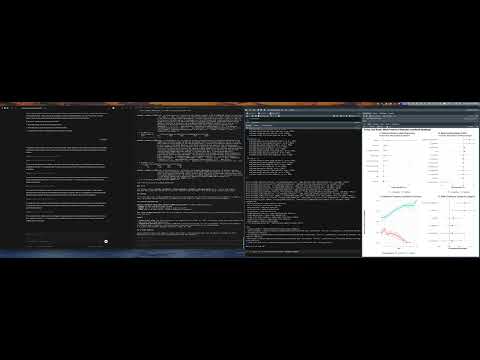
| Single agent via Claude Desktop App | Multi-agent: Codex + Claude Code via CLI | GPT 5.4 Codex: Data analysis + Quarto report |
|---|---|---|
 |
 |
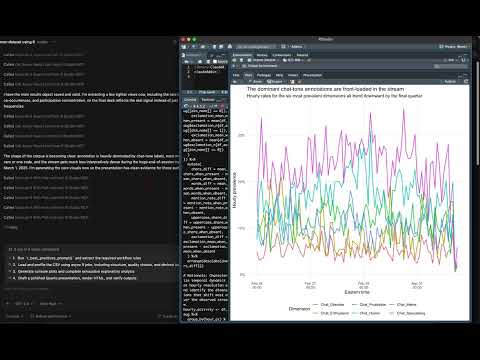 |
Table of Contents
- Quick Start
- Features
- Python Sessions and Positron
- Terminal R and Clusters
- How It Works
- Reviewer Zero
- R Best Practices Protocol
- Multi-Agent Coordination Protocol
- AI-Driven Data Annotation
- Systematic Review Screening
- Grant Panel Mode
- Response to Reviewers
- CLI Integration
- Security Model
- Installation
- Usage
- Logging Options
- Example Interactions
- Important Notes
- Troubleshooting
- Limitations
- License
- Contributing
Features
ClaudeR empowers your AI assistant with a suite of tools to interact with your R environment:
execute_r: Execute R code and return the output.execute_r_with_plot: Execute R code that generates a plot that the model can see.execute_r_async: Execute long-running R code asynchronously (>25 seconds). Returns a job ID for polling.get_async_result: Wait for an async job and return its result the moment it finishes (up towait_sseconds, default and maximum 50, since apps give up on a tool call after about a minute). Call again to keep waiting.wait_s = 0just checks.list_sessions: List all active RStudio sessions the agent can connect to.connect_session: Connect to a specific RStudio session by name for multi-session workflows.get_session_history: View execution history filtered by agent ID.read_file: Read any file from disk (.R, .qmd, .csv, .log, etc.) without needing it open in RStudio. Manuscripts are handled transparently:.docxand.pdfare extracted as structured text with headings marked and table cells kept separated. Supportsstart_line/end_linepagination for large files.check_cross_references: Deterministic internal-reference integrity: flags dangling mentions (“see Table 4” with no Table 4) and tables/figures never referenced in the text.annotate_manuscript(R function, used by the audit protocols): writes findings into a copy of a.docxas native, anchored Word comments, so authors can accept/dismiss the audit inside Word.reconcile_values: The audit backbone. Extracts every numeric value from a manuscript and reconciles each against the numbers your code actually produced (logs, outputs, tables), respecting displayed precision, commas, percents, scientific notation, and< .001thresholds. Returns a per-value registry so nothing can be silently skipped.get_active_document: Read the focused editor buffer. Returns the content, the file path, and whether the buffer has unsaved changes, so buffer state and disk state are never confused.get_r_info: Get information about the R environment.modify_code_section: Regex find-and-replace in an editor document. Handles multi-line patterns, allows the replacement to change the line count, preserves literal backslashes, saves to disk by default, and accepts apathto target a specific file.insert_text: Insert text at the cursor or a specific line/column. Saves to disk by default; accepts apathto target a specific file.suggest_edit: Propose an edit for the user to approve instead of applying it. Usesrstudioapi::showEditSuggestion()when available, otherwise stages the change in the editor unsaved so the user accepts by saving or rejects with undo.get_viewer_content: Read HTML content from the viewer pane (plotly, DT, leaflet widgets) with pagination support.clean_error_log: Clean a session log by removing error blocks and their duplicate predecessors, leaving only working code and the fixes that followed.search_project_code: Search for a regex pattern across project source files (.R, .Rmd, .qmd). Returns file, line number, and snippet.probe_scripts: Source R scripts in a clean background session and report what objects are created (names, classes, dimensions) without affecting your main session.verify_references: Verify academic references: DOIs are checked against CrossRef (with retraction/correction flags from Crossref update notices), arXiv IDs are resolved with a published-version check, and DOI-less entries get bibliographic matching with candidate DOIs.search_citations: Search the OpenAlex scholarly index for the correct reference for a claim (title, authors, year, venue, DOI, citation count) instead of citing from memory.get_bibtex: Fetch the canonical BibTeX entry for a DOI via doi.org content negotiation.generate_notebook: Turn a session log into a narrated Quarto lab notebook. Rendering re-runs the code so outputs and plots regenerate.generate_codebook: Scan a project and emit the codebook OSF and journals require: versioned package list, script inventory, per-variable summaries (class, n, missingness), and outputs produced.screening_report: Summarize systematic-review screening passes. Computes agreement and Cohen’s kappa between two model screeners, the PRISMA flow counts, and the conflict set a human must adjudicate.send_message/check_messages/wait_for_message/coordination_roster: Typed multi-agent messaging on an append-only shared log.wait_for_messageblocks until a matching event arrives (rendezvous without polling), and everything works even while the R session is busy executing another agent’s code.wake_on_message: Gives an idle agent a command to run in the background that finishes when a message for it arrives, so its app wakes it. No timers, no repeated checking. Works in any app that tells the agent when a background command finishes, including Claude Code and Antigravity.checkpoint_session: Snapshot the R global environment to disk before risky operations. Checkpoints survive R restarts.restore_session: Roll the environment back to a checkpoint. The current state is saved first, so a restore is itself undoable. Also callable from the console (ClaudeR::restore_session()) when you need to recover from an agent mistake yourself.list_checkpoints: List saved checkpoints for the current session.create_task_list: Generate a task list based on your prompt to prevent omissions in long-context tasks.update_task_status: Track progress for each task in the generated list.
With these tools, you can:
- Direct Code Execution: The AI can write, execute, and install packages in your active RStudio session.
- Feedback & Assistance: Get explanations of your R scripts or request edits at specific lines.
- Visualization: The AI can generate, view, and refine plots and visualizations.
- Data Analysis: Let the AI analyze your datasets and iteratively provide insights.
- Multi-Agent Workflows: Run Claude Desktop, Claude Code, Codex, and Antigravity on the same R session simultaneously. Each agent is uniquely identified, and they can see each other’s work through shared history and log files.
- Long-Running Analysis: Async execution handles model fitting, simulations, and large data processing without timing out.
- Code Logging: Save all code executed by the AI to log files for future reference. Every entry is tagged with the agent that ran it.
- Console Printing: Print the AI’s code to the console before execution.
- Environment Integration: The AI can access variables and functions in your R environment.
- Dynamic Summaries: Summaries can dynamically pull results from objects and data frames to safeguard against hallucinations.
- Quarto Renders: The AI can create and render Quarto presentations. For best results, ask for a .qmd file and for it to be rendered in HTML when it’s finished.
- Reviewer Zero: A built-in protocol for automated academic auditing. The AI reads a manuscript block-by-block, extracts every statistical claim into a registry, verifies its extraction, then recomputes each claim against the author’s R code. Run
reviewer_zero_prompt()for the full protocol. See the Reviewer Zero section below.
Reviewer Zero: Automated Academic Audits
ClaudeR includes a built-in protocol for AI-driven technical review of academic manuscripts. The AI acts as “Reviewer Zero”: systematically verifying that every p-value, coefficient, and confidence interval in your paper matches the code that produced it.
How it works (core protocol):
- Extract: The AI reads your manuscript block-by-block with paginated
read_file(.docxand.pdfare extracted with structure preserved, including table cells), pulling every quantitative and methodological claim into a structured registry (a data.frame visible in your RStudio Environment pane). Audit-clean print options are set first, so console output can never truncate the precision being checked. - Verify: The AI re-reads the source lines for each claim to confirm it didn’t misread values. No code runs until every claim is verified.
- Reconcile & Recompute: The backbone is the value sweep:
reconcile_valuesenumerates every numeric value in the manuscript and supplement and reconciles each against the corpus of numbers your code actually produced, at the document’s displayed precision. Every unmatched value must be recomputed or explained before the audit may proceed: completeness by construction, not by diligence. Claim-level recomputation then runs against clean-room script outputs (probe_scriptswith output capture), so a stale object in your session can never make a check agree spuriously. Methodological claims (e.g., “zero variance made testing impossible”) are tested directly rather than accepted at face value. - References:
verify_referenceschecks every DOI against CrossRef and flags metadata mismatches, non-resolving DOIs, and retracted or corrected papers. arXiv preprints are resolved and matched against published versions. DOI-less references get bibliographic matching. In-text citations are cross-checked against the bibliography.
Optional extensions, composable via arguments (examples below): a preregistration deviation audit (prereg_path), a specification-curve robustness check (robustness), write-back of every finding as Word comments (writeback), and Referee Mode (referee, or standalone referee_prompt()), a substantive review of the reasoning itself: argument logic, methods, internal consistency, evidence presentation, and framing, run by parallel reviewer subagents with configurable model tiers, adversarial stances, and cross-vendor dispatch, with a deterministic check_cross_references pass and delivery as anchored Word comments.
To get started:
# Print the full protocol prompt to give to your AI agent
reviewer_zero_prompt()

# Optional Pass 5: audit the analysis against your preregistration.
# Produces a deviation report (followed / disclosed deviation /
# undisclosed deviation / not executed) plus a list of exploratory
# analyses that are not labelled as such.
reviewer_zero_prompt(prereg_path = "prereg.docx")

# Optional Pass 6: specification-curve robustness check. The agent
# enumerates defensible alternative analysis choices for the primary
# claims, runs the grid in background jobs, and reports a sensitivity
# table plus a specification curve.
reviewer_zero_prompt(robustness = TRUE)

# Optional write-back: every flagged claim becomes a native Word comment
# in a copy of the manuscript, so you can accept/dismiss findings in Word.
reviewer_zero_prompt(writeback = TRUE)

# All extensions together
reviewer_zero_prompt(prereg_path = "prereg.docx", robustness = TRUE, writeback = TRUE)

# Referee Mode, configured. Quick-and-dirty pass on a fast model tier:
referee_prompt(model = "haiku")

# Submission-grade: strongest tier, adversarial reviewer pairs per lens
# (prosecutor + verifier), and lenses dispatched across model vendors
# (codex/agy/qwen) so same-model blind spots can't hide the same flaw twice:
referee_prompt(model = "opus", reviewers_per_lens = 2, cross_vendor = TRUE)

# Mix tiers per lens: deep model where the reasoning is hard, fast elsewhere
referee_prompt(model = c(logic = "opus", methods = "opus", consistency = "haiku"))
The protocol works with .docx, .pdf, .qmd, .Rmd, .tex, or plain text manuscripts and supports multi-script R projects.
R Best Practices Protocol
ClaudeR comes with a built-in statistical analysis protocol inspired by the modeling workflows I learned from my statistics courses and refined through oof moments from using AI agents in real statistical work. The goal is to steer models with natural language to reproducible, theory-driven analysis which covers EDA, assumption checking, model building, diagnostics, multiple-corrections, and reporting.
# Print the full protocol to give to your AI agent
r_best_practices_prompt()
You can also just tell the agent to run ClaudeR::r_best_practices_prompt() and it will read the protocol itself.
Multi-Agent Coordination Protocol
When two or more agents share the same RStudio session, they need a way to divide work without stepping on each other. Coordination v2 runs on a typed, append-only event log on disk, shared by the R session and every agent’s bridge: typed signals instead of prose conventions, per-agent read cursors (so no agent can clobber another’s state), to: addressing with reply threading, lease-based task claims, a latest-wins fact store for shared state, presence stamped by every write, and wait_for_message so an agent can block until its partner’s signal arrives instead of polling. The log survives R restarts.
Being woken instead of checking. An idle agent doesn’t need a timer. It calls wake_on_message once and runs the command it gets back as a background command. In Claude Code that means the Bash tool with run_in_background. In Antigravity, the command carries on in the background by itself. The command finishes the moment a message for that agent lands, and the app wakes the agent, which reads with check_messages and starts the command again. MCP itself has no way for a tool server to wake a model, which is why this goes through the app’s own background commands.
The board belongs to the session name, so a session that reuses a name picks up its old messages, and an agent new to the board reads all of them on its first check. To start clean, tick Fresh start on restart in the addin, or run start_server("name", fresh_start = TRUE). The old board moves to an archive folder inside ~/.clauder_coord/ and is never deleted. A name nobody has used starts empty anyway. The archive is still a file on your computer, so an agent that runs R code can read it if it goes looking.
The centerpiece is the consensus gate: when an agent proposes a plan with propose_plan(), every code-execution response in the session carries a banner demanding explicit agreement until every agent has run confirm_agreement() with a required sentence, verbatim. Agents cannot talk past each other into conflicting work: the plan is only marked approved when all parties have confirmed they read each other’s position and agree.
# Print the full protocol to give to your AI agents
multi_agent_prompt()
You can also just tell the agents to run ClaudeR::multi_agent_prompt() and they will read the protocol themselves.
AI-Driven Data Annotation
ClaudeR includes a purpose-built annotation workflow for labelling CSV datasets with an AI agent. The agent works through the dataset row by row using two dedicated MCP tools, with no code required on the agent’s end.
CSV format: add a _schema column to your file and define the annotation fields in the first row using a simple type syntax:
text,label,confidence,_schema
"Some text","","","label:choice[positive,negative,neutral];confidence:float[0,1]"
"More text","","",""
Supported types: choice[a,b,c], float[min,max], int[min,max], bool, text
Running an annotation session:
# Print the full protocol to give to your agent
data_annotation_prompt()
Or tell the agent to run ClaudeR::data_annotation_prompt() and it will read the protocol itself. The agent then calls load_annotation_data to start and annotate to label each row. The original file is never modified, and sessions are automatically resumable if interrupted.
Running it in the background: for a bigger file, run_annotation_job labels every row in the background, each in a fresh call to claude, codex, agy, qwen or a local ollama model that sees only that row.
- Each Claude call starts in an empty folder with no tools, MCP servers, hooks, CLAUDE.md or slash commands, so nothing but the row reaches the model. Claude Code still lists your installed plugins, but they have nothing to run through. Codex calls also start in an empty folder.
- Claude Code’s own system prompt is left out too. That’s the long block of built-in instructions Claude Code gives the model before anything you type: that it’s a command-line coding assistant, how to use Bash and the file tools, how to format replies for a terminal, git habits, when to ask permission, and so on. A labeller has no tools, files or terminal for any of it to apply to, and it can colour the answers, so each call gets an empty system prompt (or just your
instructions). Passkeep_claude_code_prompt = trueto keep it, for example to match a run made before clauder-mcp 0.16.5. A Claude Code without the--system-promptoption keeps it either way; the first line of the raw replies file says which happened. instructionstakes your task instructions or codebook once and gives them to every call ahead of the rows, so you don’t have to copy them into a column on every row. Claude gets them as the system prompt (the whole of it, unless you keep Claude Code’s own), which stays the same from call to call and can be reused between calls. They’re recorded at the top of the raw replies file.- Labels go to
{name}_annotating.csv, and every reply is kept word for word in{name}_annotating_raw.jsonl, so you can check what the model actually said. - A reply that isn’t valid JSON or doesn’t fit the schema is asked again, up to three times.
- If you hit your plan’s usage limit, the job stops with every saved row kept. Run it again later and it picks up where it stopped.
no_api_key = trueremoves API keys from each call (for Claude, everyANTHROPIC_*variable, so a custom base URL can’t route the call to a key either), so the CLI uses your subscription login and never bills a key. Leave it off if an API key is how you sign in.batch_sizesends several rows per call for very large jobs. The default is 1, which keeps one row from influencing another. Raise it only when speed matters more than that.
Check on a job with get_annotation_job_status, or stop it with cancel_annotation_job.
Systematic Review Screening
Title and abstract screening is the slowest part of a systematic review. Two humans normally read every record. ClaudeR replaces the bulk reading with two independent AI screeners and leaves the human only the disagreements.
The workflow: export your deduplicated database search to a CSV, add your inclusion and exclusion criteria as a _schema column, and run run_annotation_job twice with two different model families (for example Claude and a free local ollama model). Then:
# Agreement, Cohen's kappa, PRISMA counts, and the conflict set
screening_report("pass_claude_annotating.csv", "pass_qwen_annotating.csv")
The report gives you percent agreement, Cohen’s kappa between the screeners, the PRISMA flow numbers, and a screening_conflicts data frame holding only the records the two models disagreed on. You adjudicate those, typically a small fraction of the total. Every decision carries a reason, so the audit trail answers “why was this record excluded” with one filter. Print the full protocol with screening_prompt().
Grant Panel Mode
A mock study section for your grant before the real one meets. One reviewer subagent per criterion, honest scores, and every weakness anchored to a quote from your proposal.
grant_panel_prompt(rubric = "nih")   # Significance, Investigators, Innovation,
                                     # Approach, Environment, scored 1 to 9
grant_panel_prompt(rubric = "nsf")   # Intellectual Merit and Broader Impacts
The chair synthesis ends with the part that matters: a ranked list of concrete revisions that would move your score, each phrased as something you can do this week. Findings can be written into a copy of the proposal as Word comments.
Response to Reviewers
The revise-and-resubmit workflow, compressed. Give the agent the decision letter and your manuscript, and run reviewer_response_prompt(). The agent parses the letter into individual reviewer points, locates each point in your manuscript, and drafts a point-by-point response. Where a reviewer asks a data question, the agent reruns the analysis in your live session, so the answer contains real computed numbers rather than recalled ones. A gate blocks completion until every point has a drafted response.
The deliverables: a formatted response letter via export_response_letter() (markdown, plus .docx when pandoc is installed), and your manuscript annotated with a Word comment at each spot that needs an edit, tagged with the reviewer point it answers.
Python Sessions and Positron
ClaudeR also connects an agent to a live Python session, and both halves work in Positron as well as RStudio.
import clauder
clauder.start()
The agent then executes code in that session, where your loaded dataframes and fitted
models already are, and sees the figures it draws. Run it in Positron, Jupyter, VS Code,
or a bare REPL. Sessions announce themselves the same way R ones do, so list_sessions
shows both and the agent connects to either by name:
Active sessions (2):
  analysis [python] — port 8790, pid 8088, started 2026-09-09T10:50:09
  modelling [r] — port 8787, pid 84615, started 2026-09-09T09:12:44
Start it once per session, the same as claudeAddin() in R. If the port is busy it moves
to the next free one and tells you which it took.
Every session needs its own name, because that is how the agent tells them apart.
clauder.start() uses the name default, which is also what the R addin fills in for
you. With an R session already running under that name, Python stops with
RuntimeError: Session name 'default' is already owned by a live or unknown process
Give the Python session a name of its own, and tell the agent to connect to that name:
clauder.start(session_name = "analysis")
If you would rather not type it each time, run it from an IPython startup file:
# ~/.ipython/profile_default/startup/50-clauder.py
import clauder
clauder.start(quiet=True)
That opens a server in every Python session you start, including ones you did not intend to expose to an agent, so it is off by default and worth thinking about before enabling.
What works where
A Python session gets the live environment. It does not get the editor or the audit
tooling, because those drive the IDE through rstudioapi, which has no Python equivalent.
| R | Python | |
|---|---|---|
| Execute code in your live session | yes | yes |
| Plots returned to the agent, and in your plot pane | yes | yes |
| Per-agent log of every line executed | yes | yes |
| Multi-agent coordination and the consensus gate | yes | yes |
| Read and edit your open editor buffer | yes | no |
Approve-before-apply edits (suggest_edit) |
yes | no |
| Checkpoint and roll back the environment | yes | no |
| Reviewer Zero and the audit tools | yes | no |
R in a plain terminal, started with start_server(), has everything in the R column
except the two editor rows. See Terminal R and Clusters.
So “load this file, fit the model, plot the residuals” works in Python. “Look at the file I have open and fix that function” is R only. An agent can still read and write those files with its own file tools, it just cannot go through your editor buffer.
Positron notes
R in Positron needs nothing special. Positron ships an rstudioapi compatibility layer,
so the editor tools work there, with one difference: suggest_edit stages the change
unsaved rather than using showEditSuggestion(), which Positron does not implement. You
accept by saving or reject with undo.
Terminal R and Clusters
You don’t need RStudio. start_server() does what the addin’s Start Server button does, from any R console:
library(ClaudeR)
start_server("analysis")
At an R prompt it returns straight away and the prompt stays yours. Agents are served whenever R is idle, and whatever they create is there for you to use. If your own code is running when an agent’s request arrives, the request waits and runs the moment your code finishes. stop_server() stops it.
For a session you leave alone, such as a tmux pane or a batch job on a cluster, run it from Rscript. There it serves until interrupted:
Rscript -e 'ClaudeR::start_server("fit", port = 8790)'
What differs from RStudio:
- No editor tools. Reading and editing the open document needs an editor, so those four tools are left out of what the agent is offered. Everything else works: code, plots, checkpoints, logging, coordination, background jobs and the audit tools.
- Plots without a screen. With no display, R’s default graphics device is a PDF file, which the agent could never see. While the server runs,
start_server()swaps in a hidden image device, so plots reach the agent the way they do from the Plots pane. If R does have a screen (terminal R on your laptop), plots open in a window as usual and the agent sees those. - The bridge runs on the same machine as R. It finds sessions through files in your home folder and talks to
127.0.0.1, so run your AI tool on the machine R is on.
start_server() also works inside RStudio and Positron, as an alternative to the addin window that leaves the console free. Running claudeAddin() later opens the window on the server that is already running.
How It Works
ClaudeR uses the Model Context Protocol (MCP) to create a bidirectional connection between an AI assistant and your RStudio environment. MCP is an open protocol from Anthropic that allows the AI to safely interact with local tools and data.
Here’s the workflow:
- The Python MCP server acts as a bridge.
- The AI sends a code execution request to the MCP server.
- The server forwards the request to the R add-in running in RStudio.
- The code executes in your R session, and the results are sent back to the AI.
This architecture ensures that the AI can only perform approved operations through well-defined interfaces, keeping you in complete control of your R environment.
CLI Integration
ClaudeR supports command-line interface (CLI) agents: the Claude Code CLI, the OpenAI Codex CLI, the Qwen Code CLI, and the Google Antigravity CLI (agy). The Google Gemini CLI shut down on June 18, 2026, and agy replaced it. This is ideal for developers who prefer a terminal-based workflow, allowing you to interact with your AI assistant directly from the command line while maintaining a live connection to your RStudio session.
Security Model
ClaudeR is a supervised power tool. The agent executes R code in your live RStudio session, the same session where your data and variables live. You should review what it does, just as you would review a colleague’s code before running it.
Server authentication
Binding to 127.0.0.1 is not a security boundary. Any other process on your machine can post code to the port, and so can any webpage you visit, via a cross-origin POST that browsers send without a CORS preflight. Either one is arbitrary code execution in your R session. ClaudeR has two defences:
- Origin block (always on). Any request carrying an
Originheader is rejected with a 403. Only browsers setOrigin, and the MCP bridge never does, so this closes the drive-by-webpage vector with no configuration and no compatibility cost. - Session token (opt-in). On Start Server, ClaudeR mints a random token and writes it to the discovery file (mode
0600, readable only by you). The bridge reads it and echoes it back asX-Clauder-Token. Tick Require auth token under Advanced to reject every request that lacks it. This closes the local-process vector too.
The token is off by default because enforcing it rejects any bridge older than clauder-mcp 0.6.0, which would break existing installs on upgrade. To turn it on:
uvx --refresh clauder-mcp # get a bridge that sends the token
Then tick Require auth token in the addin’s Advanced panel and restart the server. Until you do, the addin prints a one-time console notice when a token-less bridge connects.
Guardrails (not a sandbox)
validate_code_security() rejects the obvious footguns: system(), system2(), shell(), rstudioapi::terminal, and recursive/wildcard deletes. Treat this as a seatbelt, not a sandbox. It is a regex blocklist and it is trivially bypassable by design (get("system")(...), do.call, eval(parse(...)), and so on). It is there to catch careless generation, not a determined agent. The agent’s job is to run arbitrary R, so there is no version of this that is airtight.
What ClaudeR does NOT restrict
The agent can read any file you can read, install packages, overwrite objects in your environment, make network calls, and consume compute. These are necessary for it to be useful. So:
- Use logging (enabled by default) for a full record of every line executed and which agent ran it.
- Work in a project directory to limit what the agent sees by default.
- Review before trusting: especially for Reviewer Zero audits, treat the output as a draft that you verify.
Prompt injection: read this before auditing someone else’s manuscript
ClaudeR deliberately combines three things: an agent that can execute arbitrary R, tools that pull in untrusted third-party content (read_file, get_viewer_content, verify_references, load_annotation_data), and an R session that can write files and reach the network.
That combination means a manuscript, CSV, or HTML widget authored by someone else is untrusted input on a path to code execution. Reviewer Zero’s whole premise (point the agent at a paper you did not write) is exactly the risky shape. A document containing text aimed at the model rather than the reader can redirect what the agent does.
No filter fixes this, because running code is the feature. Mitigate by treating agent sessions over third-party documents as you would running a stranger’s script: do it in a project directory, keep logging on, read the log, and don’t leave credentials lying around in the working directory or environment.
Restrictions apply only to code executed by the AI. Your manually executed R code is unaffected.
Installation
Step 1: Install ClaudeR from GitHub
Run this command in your RStudio console:
if (!require("devtools")) install.packages("devtools")
devtools::install_github("IMNMV/ClaudeR")
Step 2: Run the Correct Installer
Choose the option that matches your workflow.
Option A: For Desktop Apps (Claude Desktop / Cursor)
This function configures the MCP config file automatically for desktop applications. By default it uses uvx to run the clauder-mcp PyPI package, which handles all Python dependencies automatically.
# Load the package
library(ClaudeR)

# Run the installer for Claude Desktop
install_clauder()

# Optional: For Cursor users
# install_clauder(for_cursor = TRUE)
For users who cannot use uvx (e.g. restricted environments), fall back to the legacy Python path method:
library(ClaudeR)
install_clauder(use_uvx = FALSE, python_path = "/path/to/your/python")
Option B: For CLI Tools (Claude Code / Codex / Qwen / Antigravity)
This non-interactive function generates the exact command or JSON configuration needed for your CLI tool.
library(ClaudeR)

# For Claude Code CLI
install_cli(tools = "claude")

# For OpenAI Codex CLI
install_cli(tools = "codex")

# For Qwen Code CLI
install_cli(tools = "qwen")

# For Google Antigravity CLI (agy, Gemini CLI's replacement)
install_cli(tools = "agy")
For users who cannot use uvx, fall back to the legacy Python path method:
install_cli(tools = "claude", use_uvx = FALSE, python_path = "/path/to/my/python")
After running the function, you must manually apply the configuration:
- For Claude / Codex / Qwen: Copy the command printed in the R console and run it in your terminal.
- For Antigravity (agy): Copy the generated JSON into
~/.gemini/config/mcp_config.json(global) or.agents/mcp_config.json(per-workspace).
After setup, quit and restart any active Desktop Apps or terminal sessions for the new settings to load.
Note: If you upgrade R versions, re-run
install_cli()orinstall_clauder()to update the MCP server path. The CLI installer automatically removes stale registrations before adding fresh ones.
Usage
Part 1: In RStudio
For all workflows, you must first start the ClaudeR server. Without RStudio, run start_server() from any R console instead (see Terminal R and Clusters).
library(ClaudeR)
claudeAddin()
The ClaudeR add-in will appear in your RStudio Viewer pane. Click “Start Server”. Keep this window active while using your preferred tool.
Part 2: In Your AI Tool
- For Desktop Apps: Open the Claude Desktop App or Cursor and begin your session.
- For CLI Tools: Open your terminal and use the
claude,codex,qwenoragycommands to start interacting with your AI assistant.
Note: You can regain console/active document control by clicking the stop button in the RStudio console. This closes the Shiny UI but the MCP server keeps running in the background and your AI agents stay connected. Re-run
claudeAddin()to bring the viewer pane back with the same server state (port, session name, execution count). To fully stop the server, click “Stop Server” in the UI before closing.
Logging Options
- Print Code to Console: See the AI’s code in your R console before it runs. The code will be preceded by the header:
### LLM [agent-id] executing the following code ###. - Log Code to File: Save all executed code to a log file. Each entry is tagged with the agent ID that executed it, so you can trace which AI agent ran what.
- Custom Log Path: Specify a custom location for log files.
- Descriptive Filenames: Log files are named
clauder___.R(e.g.,clauder_default_8787_20260301_143022.R) so you can tell at a glance which session produced which log. - Reproducibility Header: Each log starts with a header containing the date, working directory, and full
sessionInfo()output (R version, platform, attached/loaded packages). This makes logs self-documenting for reproducibility. - Export Clean Script: Click “Export Clean Script” in the logging panel to produce a runnable
.Rfile stripped of all timestamps and log headers. Error blocks are kept as comments so you can see what went wrong. Also callable from the console withexport_log_as_script().
A new log file is created each time you click Start Server. All code executed by agents appends to that file until you stop and start the server again.
Example Interactions
- “I have a dataset named
datain my environment. Perform exploratory data analysis on it.” - “Load the
mtcarsdataset and create a scatterplot ofmpgvs.hpwith a trend line.” - “Fit a linear model to predict
mpgbased onwtandhp.” - “Generate a correlation matrix for the
irisdataset and visualize it.” - “I have a qmd file active. Please make a nice quarto presentation on gradient descent. The audience is very technical. Make sure it looks smooth. Save the presentation in /Users/nyk/QuartoDocs/”
If you can do it with R, your AI assistant can too.
Important Notes
- Session Persistence: Variables, data, and functions created by the AI remain in your R session.
- Code Visibility: By default, the AI’s code is printed to your console.
- Port Configuration: The default port is
8787, but you can change it if needed. On RStudio Server, 8787 is the IDE’s own port, so pick a different one (e.g. 8788). - Package Installation: The AI can install packages. Use clear prompts to guide its behavior.
Troubleshooting
- Connection Issues:
- Ensure your AI tool is configured correctly.
- Verify the Python path in your
configor CLI command. - Make sure the server is running in the add-in.
- Restart RStudio if the port is in use.
- Python Dependency Issues:
could not find function install_clauder: Restart your R session (Session -> Restart R) and try again.- MCP Server Failed to Start: If using
uvx, ensureuvis installed (curl -LsSf https://astral.sh/uv/install.sh | sh). If using the legacy method, this usually means the wrong Python environment was detected. Re-run the installer with the correctpython_pathor switch touse_uvx = TRUE.
- AI Can’t See Results:
- Ensure the add-in window is open and the server is running.
- Plots Not Displaying:
- Instruct the AI to wrap plot objects in
print()(e.g.,print(my_plot)). - Tell the AI to use the
execute_r_with_plotfunction.
- Instruct the AI to wrap plot objects in
- Long-Running Code Timing Out:
- Ask the AI to use
execute_r_asyncfor code that takes longer than 25 seconds. - The AI collects the result with
get_async_result, which waits until the job is done. - Async jobs run in a separate R process via
callrand do not have access to your main session’s environment. The AI must write self-contained code that usessaveRDS()to pass data in and write results out, then loads them back into the main session after the job completes.
- Ask the AI to use
- “Session name ‘default’ is already owned by a live or unknown process”:
- Another session, R or Python, is already running under that name. Each session needs its own. In Python, start with a name, e.g.
clauder.start(session_name = "analysis"). In R, type a different name in the addin’s Session Name box before pressing Start Server.
- Another session, R or Python, is already running under that name. Each session needs its own. In Python, start with a name, e.g.
- Server Restart Issues:
- If you see an “address already in use” error after restarting the server, it’s a UI bug. The server is still active. If you encounter connection issues, switch the port number in the Viewer Pane or restart RStudio.
- If the AI still can’t connect, click “Force Release Port” under the Advanced section. This force-kills whatever process is holding the port so you can start fresh.
- Stale MCP Path After R Upgrade:
- If tools stop working after upgrading R, re-run
install_cli()orinstall_clauder()to update the script path.
- If tools stop working after upgrading R, re-run
Limitations
- Each R session can connect to one Claude Desktop/Cursor app at a time. However, multiple CLI agents (Claude Code, Codex, Qwen, agy) can share the same session alongside a Desktop app. To isolate agents, run separate RStudio windows with different session names and ports.
- You can close the Shiny UI (Stop button in the console) to work alongside the AI. The server keeps running in the background and agents stay connected. Re-run
claudeAddin()to bring the UI back, or click Stop Server in the UI to fully stop it. - R is single-threaded, but async jobs run in a separate process via
callrso the main session stays responsive. The background process does not share the main session’s environment, so async code must be self-contained.
Citation
If ClaudeR contributes to published work, a citation is appreciated:
citation("ClaudeR")
Vitali, N. (2026). ClaudeR: Connect live RStudio and Python sessions to AI
agents over MCP. R package version 0.16.7.
https://github.com/IMNMV/ClaudeR
GitHub’s “Cite this repository” button in the sidebar produces the same thing
from CITATION.cff.
License
This project is licensed under the MIT License. See the LICENSE file for details.
Contributing
Contributions are welcome! Please feel free to submit a Pull Request.
Install
uvx --refresh clauder-mcp # get a bridge that sends the token