
An MCP server to download images from Unsplash.
Overview
An MCP server to download images from Unsplash. Watch this video to see the server in action: Before you begin, ensure you have the following: - : This server is built with Node.js. If you don't have it installed, you can download it from nodejs.org. - : You'll need an API key from Unsplash to access their service. You can get one by creating a developer account at unsplash.com/developers. You can install this MCP server in two ways: manually or by asking an AI agent. Follow these steps to install and configure the server on your local machine. Open your terminal, navigate to your desired project directory, and clone the repository. Install the necessary Node.js packages defined in package.json.
README
Unsplash MCP Server
An MCP server to download images from Unsplash.
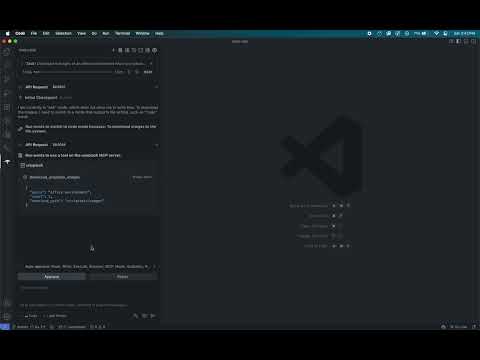
Demo
Watch this video to see the server in action:
Requirements
Before you begin, ensure you have the following:
- Node.js: This server is built with Node.js. If you don’t have it installed, you can download it from nodejs.org.
- Unsplash API Key: You’ll need an API key from Unsplash to access their service. You can get one by creating a developer account at unsplash.com/developers.
Installation
You can install this MCP server in two ways: manually or by asking an AI agent.
Option 1: Manual Installation
Follow these steps to install and configure the server on your local machine.
Step 1: Clone the Repository
Open your terminal, navigate to your desired project directory, and clone the repository.
# Clone the repository
git clone https://github.com/haramishra/mcp-unsplash

# Navigate into the project directory
cd mcp-unsplash
Step 2: Install Dependencies
Install the necessary Node.js packages defined in package.json.
# Install dependencies
npm install
Step 3: Build the Server
Compile the TypeScript source code into JavaScript.
# Build the server
npm run build
This will create a build directory containing the compiled index.js file.
Step 4: Configure MCP Settings
Add the server to your MCP settings file to make it accessible to your AI applications.
-
Locate your settings file:
- VS Code:
~/Library/Application Support/Code/User/globalStorage/rooveterinaryinc.roo-cline/settings/mcp_settings.json - Claude Desktop App:
~/Library/Application Support/Claude/claude_desktop_config.json
- VS Code:
-
Add the server configuration: Open the file and add a new entry to the
mcpServersobject.{ "mcpServers": { "unsplash-server": { "command": "node", "args": ["/path/to/your/cloned/project/build/index.js"], "env": { "UNSPLASH_API_KEY": "your-unsplash-api-key" } } } }- Replace
"/path/to/your/cloned/project/build/index.js"with the absolute path to theindex.jsfile in thebuilddirectory you created. - Replace
"your-unsplash-api-key"with the API key you obtained from Unsplash.
- Replace
The server is now installed and ready to use.
Option 2: AI-Assisted Installation
You can ask an AI agent like Roo Code or Cline to install the server for you. Provide the repository URL and your Unsplash API key.
Example Prompt:
I want to install an MCP server from a GitHub repository.
Here are the details:
- Repository URL: https://github.com/haramishra/mcp-unsplash
- Environment Variables:
- UNSPLASH_API_KEY: your-unsplash-api-key
Please install the server and configure it to run.
The AI agent will automatically handle cloning, dependency installation, building, and configuration.
Install
This server does not publish a one-line install command.
Open the repository installation guide New to MCP? Start with the mcpskill.org guide →Configuration
{
  "mcpServers": {
    "unsplash-server": {
      "command": "node",
      "args": ["/path/to/your/cloned/project/build/index.js"],
      "env": {
        "UNSPLASH_API_KEY": "your-unsplash-api-key"
      }
    }
  }
}