
dmontgomery40/bambu-printer-mcp
Developer toolsWe stand with open-source developers, the right to repair, and your right to control hardware you own. You should be able to choose your software and print without a vendor cloud standing in the way.
Overview
We stand with open-source developers, the right to repair, and your right to control hardware you own. You should be able to choose your software and print without a vendor cloud standing in the way.
README
bambu-printer-mcp
Thank you, FULU Foundation, Louis Rossmann, and the OrcaSlicer-bambulab contributors. We stand with open-source developers, the right to repair, and your right to control hardware you own. You should be able to choose your software and print without a vendor cloud standing in the way.
Want to skip Bambu’s software and cloud? Use FULU OrcaSlicer-bambulab to slice and export, then this MCP’s direct LAN path on supported printers and firmware. That workflow does not require Bambu Studio, Bambu Connect, or Bambu Cloud. Start with the FULU setup guide. The optional BambuNetwork bridge is a separate path that still uses Bambu’s networking runtime; cloud jobs still use Bambu’s services.






A Bambu Lab-focused MCP server for controlling Bambu printers, manipulating STL files, and managing end-to-end 3MF print workflows from Claude Desktop, Claude Code, or any MCP-compatible client.
Browse the documentation site for searchable setup guides, slicing and AMS guidance, and the full tool reference. It is generated from this README and the docs folder.
Built with help from our contributors. Huge thanks to everyone sharing fixes, careful bug reports, and real printer testing!
This is a stripped-down, Bambu-only fork of mcp-3D-printer-server. All OctoPrint, Klipper, Duet, Repetier, Prusa Connect, and Creality Cloud support has been removed. What remains is a focused, lean implementation for Bambu Lab hardware.
Set up with your agent
Tell your agent your printer’s model and LAN address, if you know them, then copy and paste this:
Install bambu-printer-mcp in the agent/harness I'm using now.

Read https://github.com/DMontgomery40/bambu-printer-mcp/blob/main/docs/SETUP.md
and https://github.com/DMontgomery40/bambu-printer-mcp/blob/main/docs/FULU.md
for the current setup instructions and supported workflows.

Detect my OS and harness, then use its native MCP configuration or installer.
Preserve my existing servers and settings. Prefer the published npm package
(npx -y bambu-printer-mcp, stdio); use Node.js 24 if a runtime is needed.

Find existing printer settings in relevant local configuration or available
LAN discovery. Confirm the detected printer's model, address, and identity
with me before connecting. Ask only for values you cannot find:
PRINTER_HOST, BAMBU_MODEL, BAMBU_SERIAL, and BAMBU_TOKEN (the LAN access code).
Keep credentials in local/private configuration; do not repeat access codes
or tokens in chat. Never guess the printer model.

Use direct LAN printing by default. Explain any LAN/Developer Mode setting
I need to enable. Prefer FULU OrcaSlicer-bambulab GUI slicing/export; discover
an existing slicer before suggesting an install. For FULU/Orca CLI auto-slicing,
require MCP 1.1.11+ and its matching installed profile tree (see guide).
A slicer is not needed here to print a pre-sliced file. Configure the optional FULU
BambuNetwork bridge only if I choose it, and explain its runtime/auth needs.
X2D supports status and slicing; native printing requires macOS or x86-64 Linux and a locally built helper.

If this harness does not already provide code mode or an equivalent, suggest
a compatible code-mode integration as an optional addition. It is not required;
finish ordinary MCP setup without it unless I choose to add it.

Verify that the MCP initializes, lists its tools, and reads printer status.
Do not start a print or change printer settings as a setup test. Tell me what
worked and whether I need to restart or reload the harness.
Setup reference · FULU guide · Optional code mode
What to ask your agent
Ask for the result you want, not the steps. Current models plan across tools: they search the web, read photos, look up exact dimensions, edit models, slice, and print. Expect a question or two when a choice matters, such as which filament to use or whether to start the print.
This server provides the printer, slicing, AMS, and mesh tools. Web search, photos, and Blender edits come from your agent and its other connections, such as a Blender MCP server. Printing a model your agent edited uses CLI slicing with your installed slicer presets; see the slicing guide.
Start from anything
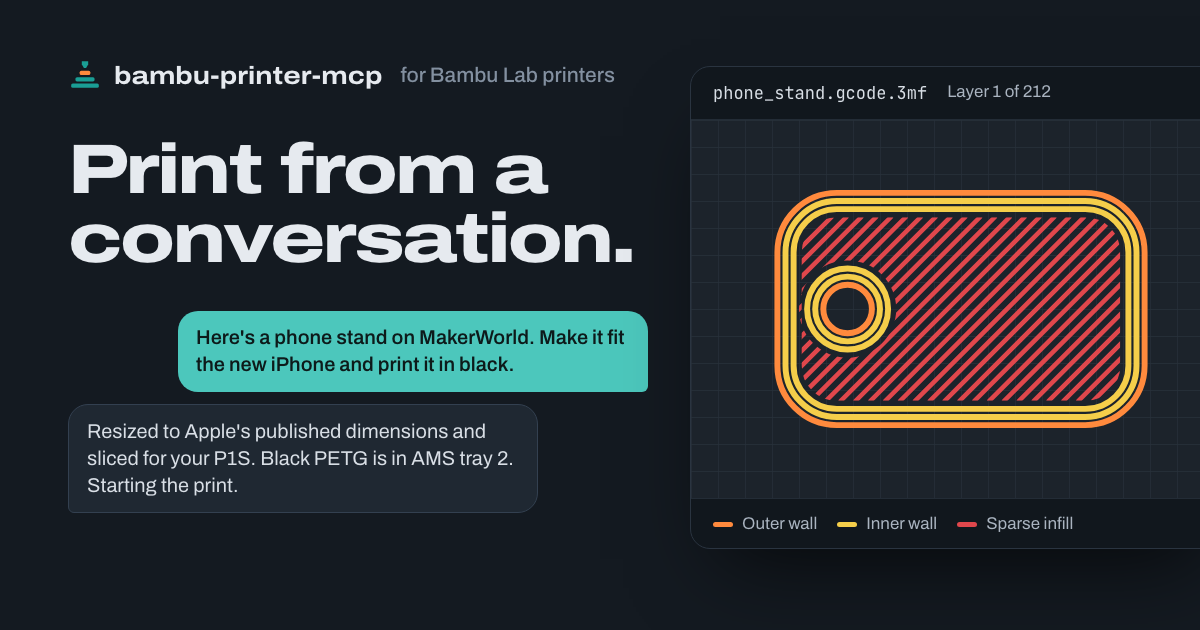
- “Here’s a phone stand on MakerWorld. Make it fit the new iPhone and print it in black.”
Your agent looks up Apple’s published dimensions, adjusts the stand in Blender, slices it for your printer, and finds the AMS tray with black filament. - “I want one of these.” (with a photo of a planter you saw at a café)
It works out the shape and size from the photo, finds or models a matching design, and asks about anything the photo can’t show. - “Can you print a replacement?” (with a photo of a snapped dishwasher rack clip)
It asks for a measurement or two where the fit matters, models the part, and prints it in a loaded material that suits the job.
From anywhere, while it prints
If your agent is always on, such as OpenClaw or Hermes Agent running on a computer at home, message it from Telegram or any other chat app. For direct LAN printing, the server runs on the printer’s local network; you don’t have to.
- “How’s the print going? Send me a picture.”
It reports progress and time remaining, and sends a snapshot from the chamber camera. - “The corner is lifting. Pause it.”
It pauses the job so you can decide whether to resume or cancel. - “One of the parts came loose. Skip it and keep printing the rest.”
It finds that object on the plate and skips only that one. - “Start drying the PETG so it’s ready when I get home.”
On a heated AMS, it starts the drying cycle for the unit holding that spool.
Before you print
- “Start the bracket I sliced last night.”
It checks the camera image before it sends the job. - “What’s loaded in the AMS? Print this in whatever black I have.”
It reads the live AMS inventory and matches the file’s filaments to your trays. - “Are there any errors on the printer?”
It reads the printer’s HMS diagnostics and explains them.
Install
npx -y -p bambu-printer-mcp bambu-printer-mcp-native-setup