
MCP服务器用于控制飞利浦Hue灯具,包括通过它们发送摩尔斯电码
概览
该MCP服务器允许Cursor或Claude Desktop访问。 💡💡 : 告诉光标代理在完成任务后向你发送摩尔斯电码消息。 https://www.youtube.com/watch?v=GM1l98TtZmk - 飞利浦Hue桥接器和灯具 - Hue桥接用户名(API密钥)- Node.js(v14及更高版本)- 光标或Claude桌面 1. 本地克隆该仓库。2. 获取你的飞利浦Hue桥接IP地址和用户名。如果没有,运行发现脚本: 按照提示点击Hue桥上的链接按钮,即可获得API密钥。 3. 先运行npm安装,然后在项目目录中运行npm运行构建。这将生成/build目录中的MCP服务器脚本。 4. 添加以下MCP配置。在光标中,它在设置 -> MCP -> 添加新的MCP服务器。在Claude Desktop中,它在设置 -> MCP -> 添加新的MCP服务器。
概述(AI 翻译)
该MCP服务器允许光标或Claude桌面使用摩尔斯电码控制飞利浦Hue灯具并发送消息。
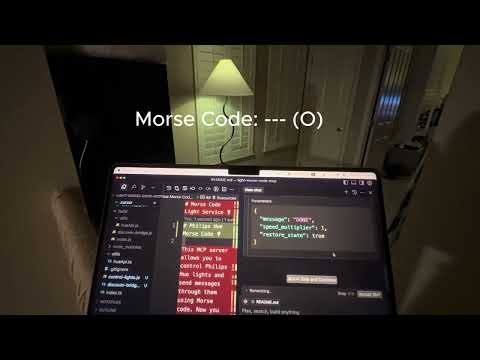
💡 示例用例💡:告诉光标代理在完成任务后向你发送摩尔斯电码消息。
演示
https://www.youtube.com/watch?v=GM1l98TtZmk
构建材料:
- 飞利浦Hue API
- 拟人MCP
- 光标
布置
先决条件
- 飞利浦Hue桥梁和灯具
- Hue 桥用户名(API 密钥)
- Node.js(v14或更高)
- 光标或Claude桌面
本地 API 设置
- 在本地克隆该仓库。
- 获取您的飞利浦Hue桥接IP地址和用户名。如果没有,运行发现脚本:
按照提示点击Hue桥上的链接按钮,即可获得API密钥。
-
在项目目录中运行
npm install和npm run build。这将生成/build目录中的 MCP 服务器脚本。 -
添加以下MCP配置。在光标中,它在设置 -> MCP -> 添加新的MCP服务器。在Claude Desktop中,它在设置 -> MCP -> 添加新的MCP服务器。
远程API设置
本页由 AI 翻译,技术细节请以原文为准。
README
以下为原文 README 节选,完整内容请查看原文。
Morse Code Light MCP Server (Philips Hue) 💡
This MCP server allows Cursor or Claude Desktop to control Philips Hue lights and send messages through them using Morse code.
💡Example use case💡: tell Cursor agent to send a Morse code message to you when it’s done with a task.
Demo
https://www.youtube.com/watch?v=GM1l98TtZmk
Built with:
Setup
Prerequisites
- Philips Hue bridge and lights
- Hue bridge username (API key)
- Node.js (v14 or higher)
- Cursor or Claude Desktop
Local API Setup
-
Clone this repository locally.
-
Obtain your Philips Hue bridge IP address and username. If you don’t have one, run the discovery script:
node build/discover-bridge.jsFollow the prompts to press the link button on your Hue bridge and receive your API key.
-
Run
npm installfollowed bynpm run buildin the project directory. This will generate the MCP server script in the/builddirectory. -
Add the following MCP configuration. In Cursor it’s under Settings -> MCP -> Add new MCP server. In Claude Desktop it’s under Settings -> MCP -> Add new MCP server.
{
  "mcpServers": {
    "control_lights": {
      "command": "node",
      "args": ["ABSOLUTE_PATH_TO_MCP_SERVER/build/index.js"],
      "env": {
        "HUE_USERNAME": "YOUR_HUE_USERNAME",
        "BRIDGE_IP": "YOUR_BRIDGE_IP"
      }
    }
  }
}
Remote API Setup
This project supports controlling your Philips Hue lights remotely (from outside your local network) using the Hue Remote API. This enables you to control your lights from anywhere with an internet connection.
Getting Remote API Credentials
-
Create a Hue Developer Account:
- Register at https://developers.meethue.com/
-
Create a Remote Hue API App:
- Go to https://developers.meethue.com/my-apps/
- Create a new app with these details:
- App name: Choose a name for your app
- Callback URL: Use
http://localhost/for simple testing - Application description: Brief description of your app
- After creating the app, you’ll receive:
- Client ID
- Client Secret
-
Get Access and Refresh Tokens:
a. Construct an authorization URL and open it in your browser:
https://api.meethue.com/oauth2/auth?clientid=YOUR_CLIENT_ID&response_type=code&state=anystring&appid=YOUR_APP_NAME&deviceid=test-device&devicename=TestDeviceReplace
YOUR_CLIENT_IDandYOUR_APP_NAMEwith your values.b. Log in with your Hue developer account and authorize the app.
c. You’ll be redirected to your callback URL with a code parameter.
d. Extract the code from the URL (e.g.,
?code=abcd1234&state=anystring).
安装
This server does not publish a one-line install command.
Open the repository installation guide 新手?先看 mcpskill.org 教程 →配置
{
  "mcpServers": {
    "control_lights": {
      "command": "node",
      "args": ["ABSOLUTE_PATH_TO_MCP_SERVER/build/index.js"],
      "env": {
        "HUE_USERNAME": "YOUR_HUE_USERNAME",
        "BRIDGE_IP": "YOUR_BRIDGE_IP"
      }
    }
  }
}