
Runekaagaard/MCP-Redmine 是一个从 https://github.com/runekaagaard/mcp-redmine. 导入的 MCP 服务器候选服务器。
概览
Runekaagaard/MCP-Redmine 是一个从 https://github.com/runekaagaard/mcp-redmine. 导入的 MCP 服务器候选服务器。
概述(AI 翻译)
状态:维护中,日常使用。
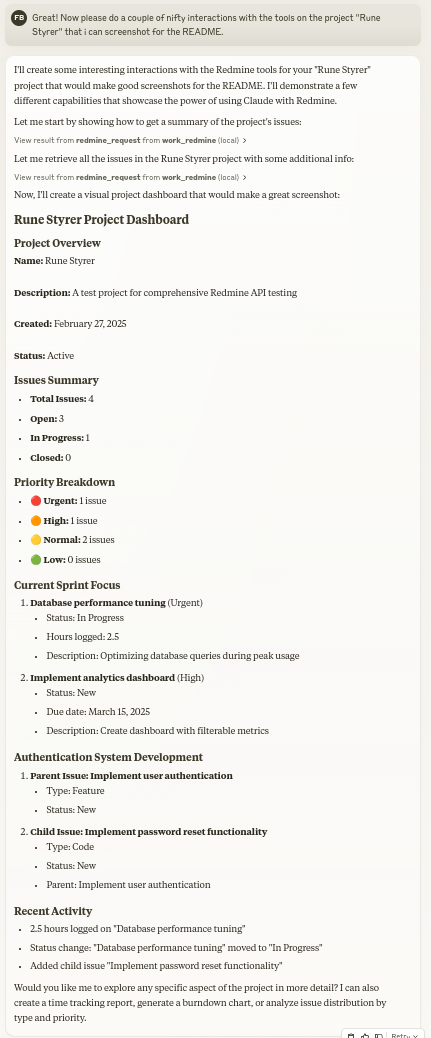
让Claude成为你的Redmine助手!MCP Redmine将Claude Desktop连接到你的Redmine实例,使其能够:
- 搜索和浏览项目及问题
- 创建并更新支持全折扣的问题
- 上传和下载文件附件
- 管理和跟踪时间条目
- 更新问题状态和字段
- 访问全面的Redmine API功能
使用 httpx 处理 API 请求,并集成 Redmine OpenAPI 规范以实现全面的 API 覆盖。
使用 Claude Desktop
1.使用 uv 安装
确保你安装了紫外线。
如果你还没安装UV,建议你安装。
-
Linux
-
macOS
-
窗户
补充你的claude_desktop_config.json:
2.使用 docker 安装
确保你安装了 docker。
从GitHub容器注册表中提取已发布的镜像:
或者自己构建图像:
补充你的claude_desktop_config.json:
3.其他MCP客户端和传输
MCP Redmine 可以支持任何 MCP 客户端(Claude Code、光标、基于 IntelliJ 的 IDE、n8n 等等)——请指向你的 客户端在与上述相同的命令和环境变量上操作,遵循客户端的文档
本页由 AI 翻译,技术细节请以原文为准。
README
以下为原文 README 节选,完整内容请查看原文。
MCP Redmine
Status: Maintained, in daily use.
Let Claude be your Redmine assistant! MCP Redmine connects Claude Desktop to your Redmine instance, allowing it to:
- Search and browse projects and issues
- Create and update issues with full markdown support
- Upload and download file attachments
- Manage and track time entries
- Update issue statuses and fields
- Access comprehensive Redmine API functionality
Uses httpx for API requests and integrates with the Redmine OpenAPI specification for comprehensive API coverage.
Usage with Claude Desktop
1. Installation using uv
Ensure you have uv installed.
uv --version
Install uv if you haven’t already.
-
Linux
curl -LsSf https://astral.sh/uv/install.sh | sh -
macOS
brew install uv -
windows
powershell -ExecutionPolicy ByPass -c "irm https://astral.sh/uv/install.ps1 | iex"
Add to your claude_desktop_config.json:
  {
    "mcpServers": {
      "redmine": {
        "command": "uvx",
        "args": ["--from", "mcp-redmine==2026.10.15.204909",
                "--refresh-package", "mcp-redmine", "mcp-redmine"],
        "env": {
          "REDMINE_URL": "https://your-redmine-instance.example.com",
          "REDMINE_API_KEY": "your-api-key",
          "REDMINE_REQUEST_INSTRUCTIONS": "/path/to/instructions.md",
          "REDMINE_ALLOWED_DIRECTORIES": "/tmp,/home/user/uploads"
        }
      }
    }
  }
2. Installation using docker
Ensure you have docker installed.
docker --version
Pull the published image from GitHub Container Registry:
docker pull ghcr.io/runekaagaard/mcp-redmine:latest
Or build the image yourself:
git clone [email protected]:runekaagaard/mcp-redmine.git
cd mcp-redmine
docker build -t ghcr.io/runekaagaard/mcp-redmine .
Add to your claude_desktop_config.json:
{
  "mcpServers": {
    "redmine": {
      "command": "docker",
      "args":  [
          "run",
          "-i",
          "--rm",
          "-e", "REDMINE_URL",
          "-e", "REDMINE_API_KEY",
          "-e", "REDMINE_REQUEST_INSTRUCTIONS",
          "-e", "REDMINE_ALLOWED_DIRECTORIES",
          "-v", "/path/to/instructions.md:/app/INSTRUCTIONS.md",
          "-v", "/path/to/uploads:/app/uploads",
          "ghcr.io/runekaagaard/mcp-redmine:latest"
      ],
      "env": {
        "REDMINE_URL": "https://your-redmine-instance.example.com",
        "REDMINE_API_KEY": "your-api-key",
        "REDMINE_REQUEST_INSTRUCTIONS": "/app/INSTRUCTIONS.md",
        "REDMINE_ALLOWED_DIRECTORIES": "/app/uploads"
      }
    }
  }
}
3. Other MCP clients and transports
MCP Redmine works with any MCP client (Claude Code, Cursor, IntelliJ-based IDEs, n8n, etc.) - point your
安装
uvx --from mcp-redmine==2026.10.15.204909 --refresh-package mcp-redmine mcp-redmine配置
{
    "mcpServers": {
      "redmine": {
        "command": "uvx",
        "args": ["--from", "mcp-redmine==2026.10.15.204909",
                "--refresh-package", "mcp-redmine", "mcp-redmine"],
        "env": {
          "REDMINE_URL": "https://your-redmine-instance.example.com",
          "REDMINE_API_KEY": "your-api-key",
          "REDMINE_REQUEST_INSTRUCTIONS": "/path/to/instructions.md",
          "REDMINE_ALLOWED_DIRECTORIES": "/tmp,/home/user/uploads"
        }
      }
    }
  }