
jyjune/mcp_vms
Productivity workflowЭта страница переведена автоматически. Технические детали смотрите в оригинале. Открыть оригинал
MCP server for controlling and accessing a video surveillance system
Обзор
A Model Context Protocol (MCP) server designed to connect to a CCTV recording program (VMS) to retrieve recorded and live video streams. It also provides tools to control the VMS software, such as showing live or playback dialogs for specific channels at specified times. - Retrieve video channel information, including connection and recording status. - Fetch recording dates and times for specific channels. - Fetch live or recorded images from video channels. - Show live video streams or playback dialogs for specific channels and timestamps. - Control PTZ (Pan-Tilt-Zoom) cameras by moving them to preset positions. - Comprehensive error handling and logging. - Python 3.12+ - vmspy library (for VMS integration) - Pillow library (for image processing) If you want to use mcp-vms with Claude desktop, you need to set up the claude_desktop_config.json file as follows: The server uses the following default configuration for connecting to the VMS: - mcp_vms_config.
README
Показан фрагмент оригинального README. Открыть оригинал.
MCP Server - VMS Integration
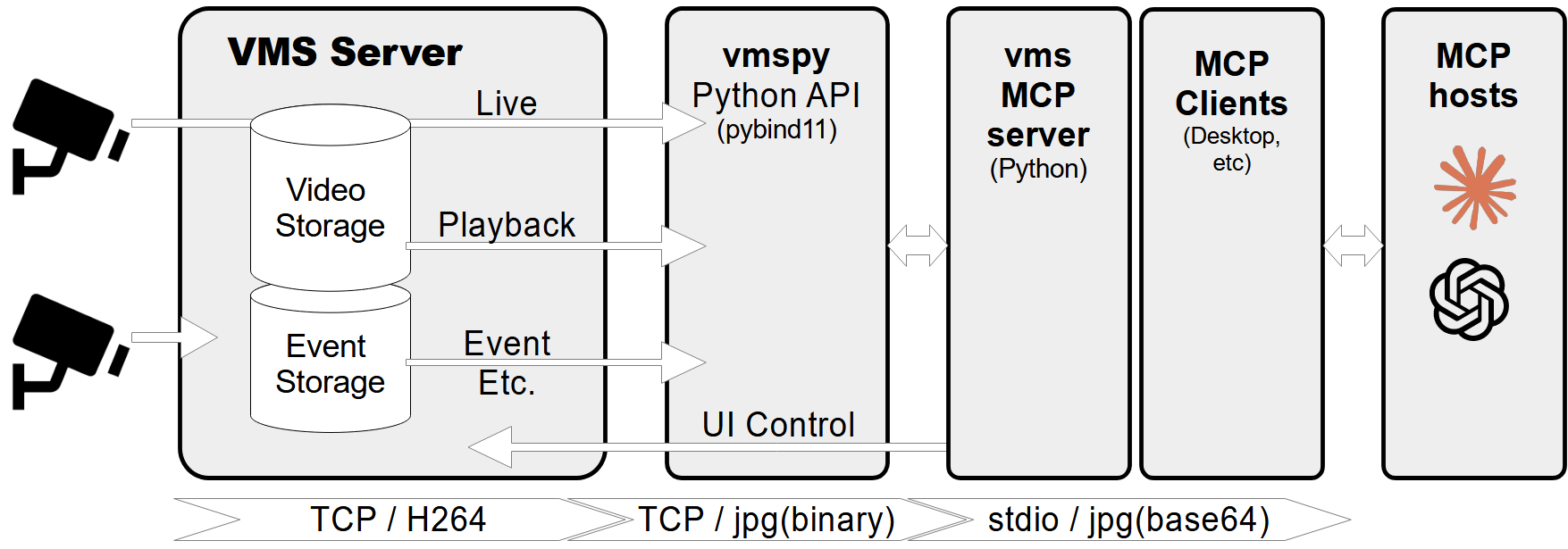
A Model Context Protocol (MCP) server designed to connect to a CCTV recording program (VMS) to retrieve recorded and live video streams. It also provides tools to control the VMS software, such as showing live or playback dialogs for specific channels at specified times.
Features
- Retrieve video channel information, including connection and recording status.
- Fetch recording dates and times for specific channels.
- Fetch live or recorded images from video channels.
- Show live video streams or playback dialogs for specific channels and timestamps.
- Control PTZ (Pan-Tilt-Zoom) cameras by moving them to preset positions.
- Comprehensive error handling and logging.
Prerequisites
- Python 3.12+
vmspylibrary (for VMS integration)Pillowlibrary (for image processing)
MCP-server Configuration
If you want to use mcp-vms with Claude desktop, you need to set up the claude_desktop_config.json file as follows:
{
  "mcpServers": {
	"vms": {
	  "command": "uv",
	  "args": [
		"--directory",
		"X:\\path\\to\\mcp-vms",
		"run",
		"mcp_vms.py"
	  ]
	}
  }
}
VMS Connection Configuration
The server uses the following default configuration for connecting to the VMS:
- mcp_vms_config.py
vms_config = {
    'img_width': 320,
    'img_height': 240,
    'pixel_format': 'RGB',
    'url': '127.0.0.1',
    'port': 3300,
    'access_id': 'admin',
    'access_pw': 'admin',
}
Installation
1. Install UV Package Manager
Run the following command in PowerShell to install UV:
powershell -ExecutionPolicy ByPass -c "irm https://astral.sh/uv/install.ps1 | iex"
For alternative installation methods, see the official UV documentation.
2.Install VMS Server
Download and install the VMS server from:
http://surveillance-logic.com/en/download.html
(Required before using this MCP server)
3.Install Python Dependencies
Download the vmspy library:
vmspy1.4-python3.12-x64.zip
Extract the contents into your mcp_vms directory
The mcp-vms directory should look like this:
mcp-vms/
├── .gitignore
├── .python-version
├── LICENSE
├── README.md
├── pyproject.toml
├── uv.lock
├── mcp_vms.py            # Main server implementation
├── mcp_vms_config.py     # VMS connection configuration
├── vmspy.pyd             # VMS Python library
├── avcodec-61.dll        # FFmpeg libraries
├── avutil-59.dllУстановка
This server does not publish a one-line install command.
Open the repository installation guide Новичок в MCP? Начните с руководства на mcpskill.org →Конфигурация
{
  "mcpServers": {
	"vms": {
	  "command": "uv",
	  "args": [
		"--directory",
		"X:\\path\\to\\mcp-vms",
		"run",
		"mcp_vms.py"
	  ]
	}
  }
}