
microsoft/vscode-copilotstudio
Developer tools이 페이지는 AI로 자동 번역되었습니다. 기술적인 세부 사항은 원문을 확인하세요. 원문 보기
VS Code Extension for Copilot Studio
개요
Visual Studio Code의 Copilot Studio 확장은 Microsoft Copilot Studio Agent의 개발 경험을 향상시키기 위해 설계되었습니다. 그것은 언어 지원, IntelliSense 부호 완료 및 제안을 제공하고, Copilot Studio 대리인 성분을 위한 허가 기능. 설치 후, 확장은 Copilot Studio에 로그인합니다. 그런 다음 환경과 관련된 에이전트 목록을 보여줄 수 있습니다. Clone는 지식 소스, 행동, 주제 및 트리거를 포함한 편집 가능한 구성 요소를 볼 수 있습니다. 1. Visual Studio Code의 기본 사이드 바의 Copilot Studio 아이콘을 선택하십시오. 확장은 로그인 권한을 요청합니다. 1. Copilot Studio 환경에 적합한 자격 증명을 선택하고 서명하십시오. 1. (선택 사항) Copilot Studio에서 원하는 에이전트를 열고 브라우저의 주소 표시줄에서 URL을 복사합니다. 1. Visual Studio Code의 패널에서 . 1. 명세.
개요(AI 번역)
Visual Studio Code의 Copilot Studio 확장은 Microsoft Copilot Studio Agent의 개발 경험을 향상시키기 위해 설계되었습니다. 그것은 언어 지원, IntelliSense 부호 완료 및 제안을 제공하고, Copilot Studio 대리인 성분을 위한 허가 기능.
설치 후, 확장은 Copilot Studio에 로그인합니다. 그런 다음 환경과 관련된 에이전트 목록을 보여줄 수 있습니다. Clone는 지식 소스, 행동, 주제 및 트리거를 포함한 편집 가능한 구성 요소를 볼 수 있습니다.
처음으로 Copilot Studio에 연결
-
Visual Studio Code의 기본 사이드 바의 Copilot Studio 아이콘을 선택하십시오. 확장은 로그인 권한을 요청합니다.
-
Allow를 선택하고 Copilot Studio 환경에 적합한 credentials로 로그인하십시오.
Clone 에이전트
- (선택 사항) Copilot Studio에서 원하는 에이전트를 열고 브라우저의 주소 표시줄에서 URL을 복사합니다.
1.Copilot Studio 패널의 Visual Studio Code, select Clone Agent.
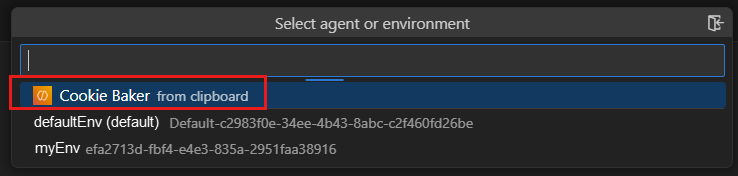
- 대리인을 선택하십시오 (클립보드에서 "로 표시되는) 당신은 이미 URL을 복사한 경우에); 그렇지 않으면, 원한 환경을 선택하고 그 후에 원한 대리인을 선정하십시오.
이 페이지는 AI로 자동 번역되었습니다. 기술적인 세부 사항은 원문을 확인하세요.
README
원문 README의 일부입니다. 원문 보기.
Copilot Studio Extension for Visual Studio Code
The Copilot Studio extension for Visual Studio Code is designed to enhance the development experience of Microsoft Copilot Studio agents. It provides language support, IntelliSense code completion and suggestions, and authoring capabilities for Copilot Studio agent components.
After installation, the extension prompts you to sign in to Copilot Studio. It can then show you a list of the agents associated with your environment. Clone an agent to see its editable components, including knowledge sources, actions, topics, and triggers.
Connect to Copilot Studio for the first time
-
Select the Copilot Studio icon in the primary side bar of Visual Studio Code. The extension asks for your permission to sign in.
-
Select Allow, and sign in with the appropriate credentials for your Copilot Studio environment.
Clone an agent
-
(Optional) Open the desired agent in Copilot Studio and copy its URL from your browser’s address bar.
-
In the Copilot Studio panel of Visual Studio Code, select Clone agent.
-
Select your agent (marked with “from clipboard” if you already copied the URL); otherwise, select the desired environment and then select the desired agent. The extension prompts you to select a folder to hold your agent’s files (similar to a local repository).
-
Select the desired folder.
Edit your agent
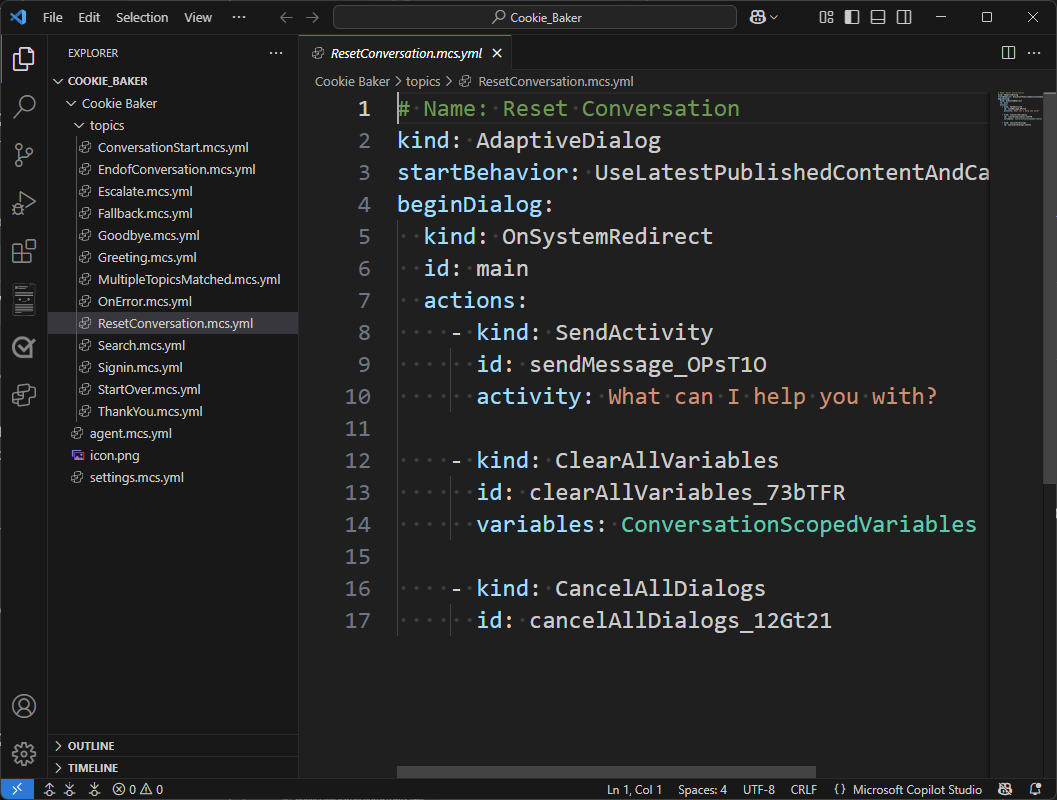
To edit any component, open the corresponding file and make the desired changes. Since Visual Studio Code natively supports YAML files, the Copilot Studio extension supports IntelliSense code completion and can provide guided tips.
Sync your changes
The Copilot Studio extension keeps your local workspace in sync with your agent. Use the sync commands in the Agent Changes view to manage changes between your local files and your Copilot Studio agent.
- Preview changes — See what’s different between your local workspace and the agent in Copilot Studio, without modifying any files.
- Get changes — Download the latest changes from your Copilot Studio agent into your local workspace.
- Apply changes — Upload your local edits to your Copilot Studio agent.
When you apply changes, they are saved directly to your agent’s environment. This is a live editing experience—your agent is updated immediately.
Repository Structure
src/
  LanguageServers/                        # .NET language server (C#)
CLaSP/ # Common Language Server Protocol framework추천 도구
다른 키워드를 입력하거나 필터를 제거해 보세요.
설치
npx skillfish add microsoft/vscode-copilotstudio